
Hover to point, tap to click
The pad maps your finger's absolute position to the screen. Keep it within 1 cm and the pointer follows.
Scroll in bed, work reclined, game lying down. Hover within 1 cm and the pointer follows — Apple, Windows, Android and HarmonyOS, plug and play. No drivers, no setup.
Windows / macOS · Linux · Android · HarmonyOS · iOS · Bluetooth 5.4
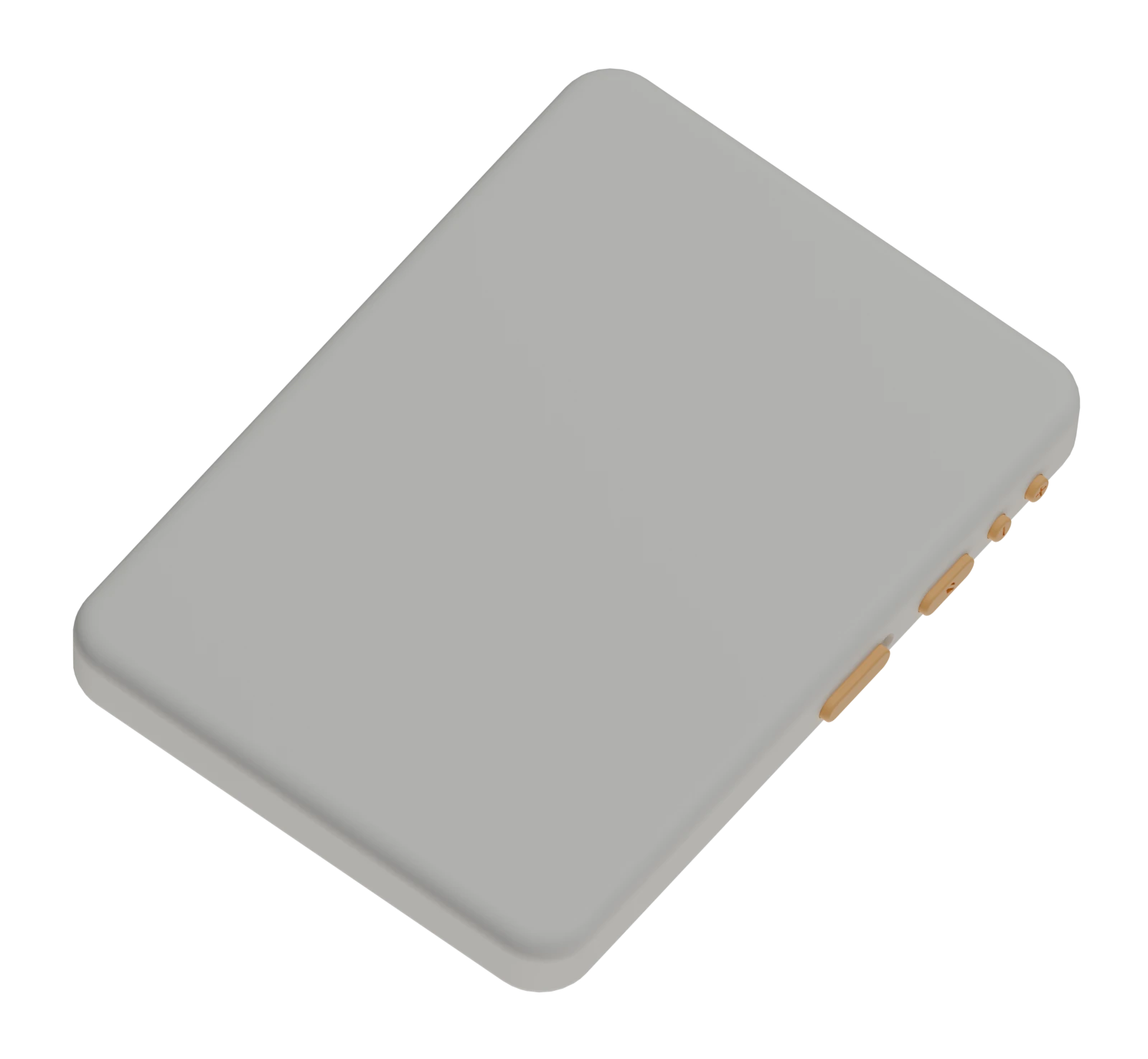
Demo
No holding your phone up, no leaning over the desk. See three of the most common ways to use it.
The demo film is in production. The finished video will play here.
Features
No setup, no drivers. Hover, tap and scroll from whatever position feels good.
The pad maps your finger's absolute position to the screen. Keep it within 1 cm and the pointer follows.
Native touch with a visible finger indicator. It uses the phone's own touch controls, so you never have to worry about controller compatibility.
Move between phone, tablet and computer with Volume− + Volume+. No re-pairing.
Remap the buttons to your workflow. Set the wake key to the voice-input shortcut of your preferred LLM tools (Doubao, ChatGPT, Tongyi…) and talk to the model with one press.
TikTok, Bilibili, Fanqie Novel and manga apps. Turn pages, like and comment with one finger.
Apple, Android, HarmonyOS, Windows, macOS and Linux — phones, tablets and computers of every size.
Note: on Windows, Android and HarmonyOS the companion app adds multi-touch, so several fingers can work at once.
The app also switches between portrait and landscape — tap “Switch to landscape” and play landscape games without changing how you hold the pad.
Setup & switching
Pair each device first. To switch, press Volume+ + Volume−, then follow the setup guide below to pair the second device.
Works on Windows 10 / 11, macOS and Linux. Pairing works the same way in system Bluetooth; no driver is needed.
Slide the power switch on the right side of the pad upward. The indicator lights up when it is on — charge it fully before first use.
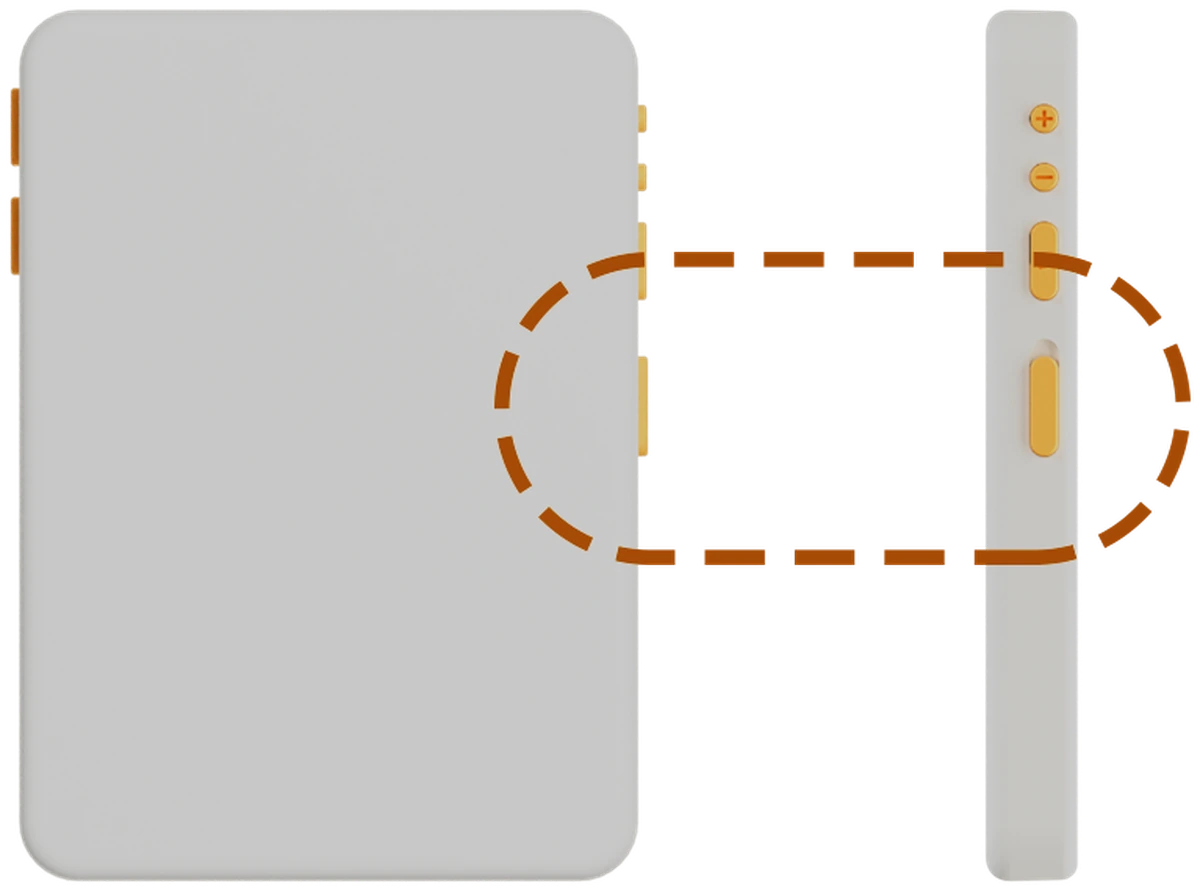
Click the network, volume or battery icon at the right end of the taskbar to open Windows Quick Settings.
macOS: open Control Center at the top right, or go straight to System Settings › Bluetooth.
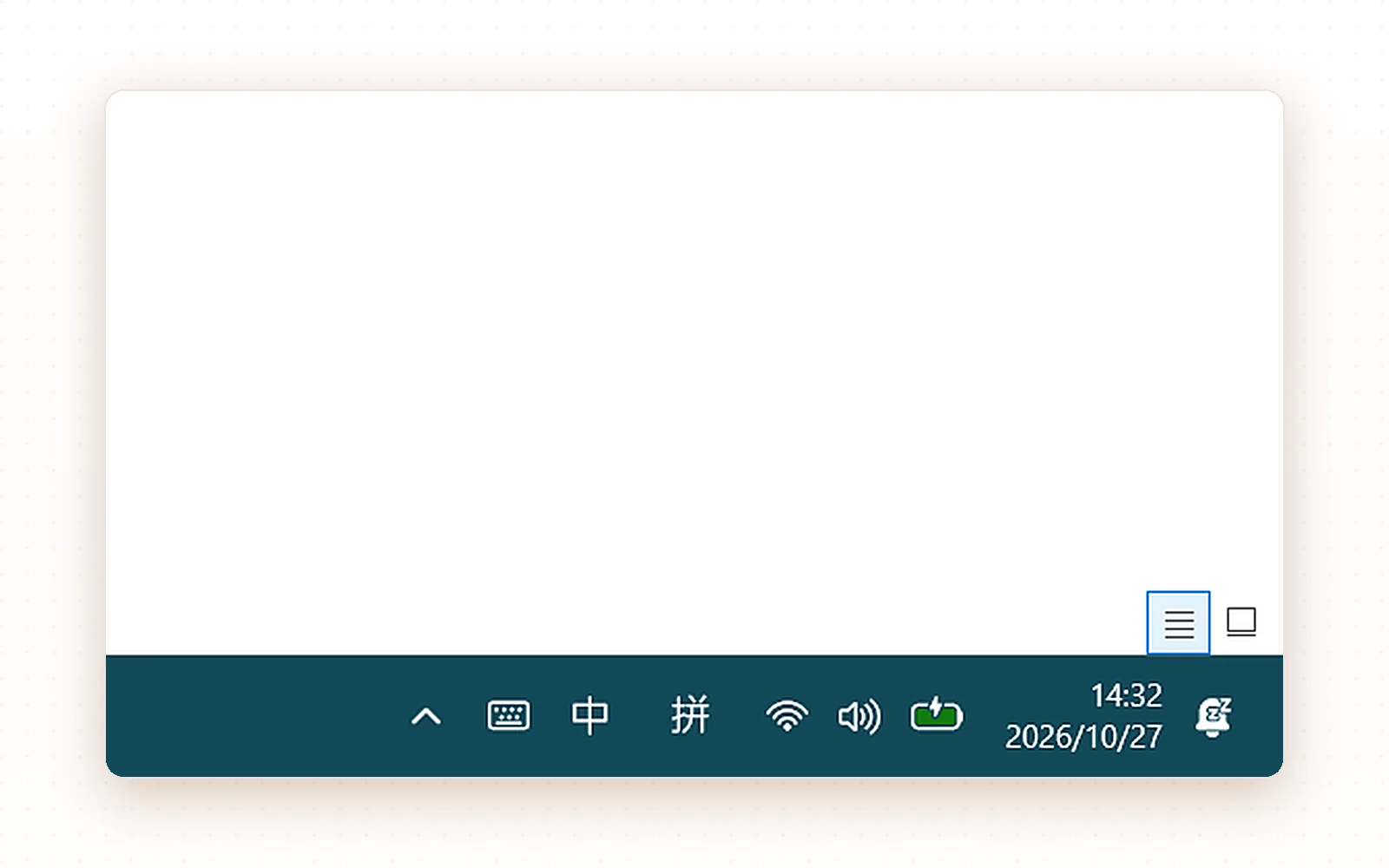
Click the Bluetooth tile so it lights up. When “Not connected” turns into the device name, the pad is paired.
On macOS or Linux, turn Bluetooth on in Settings › Bluetooth and pick SHADOW_TOUCH from the list.
Pick SHADOW_TOUCH in the device list and pair. No password and no extra driver are required.
On Windows 11 the path is Settings › Bluetooth & devices › Add device.
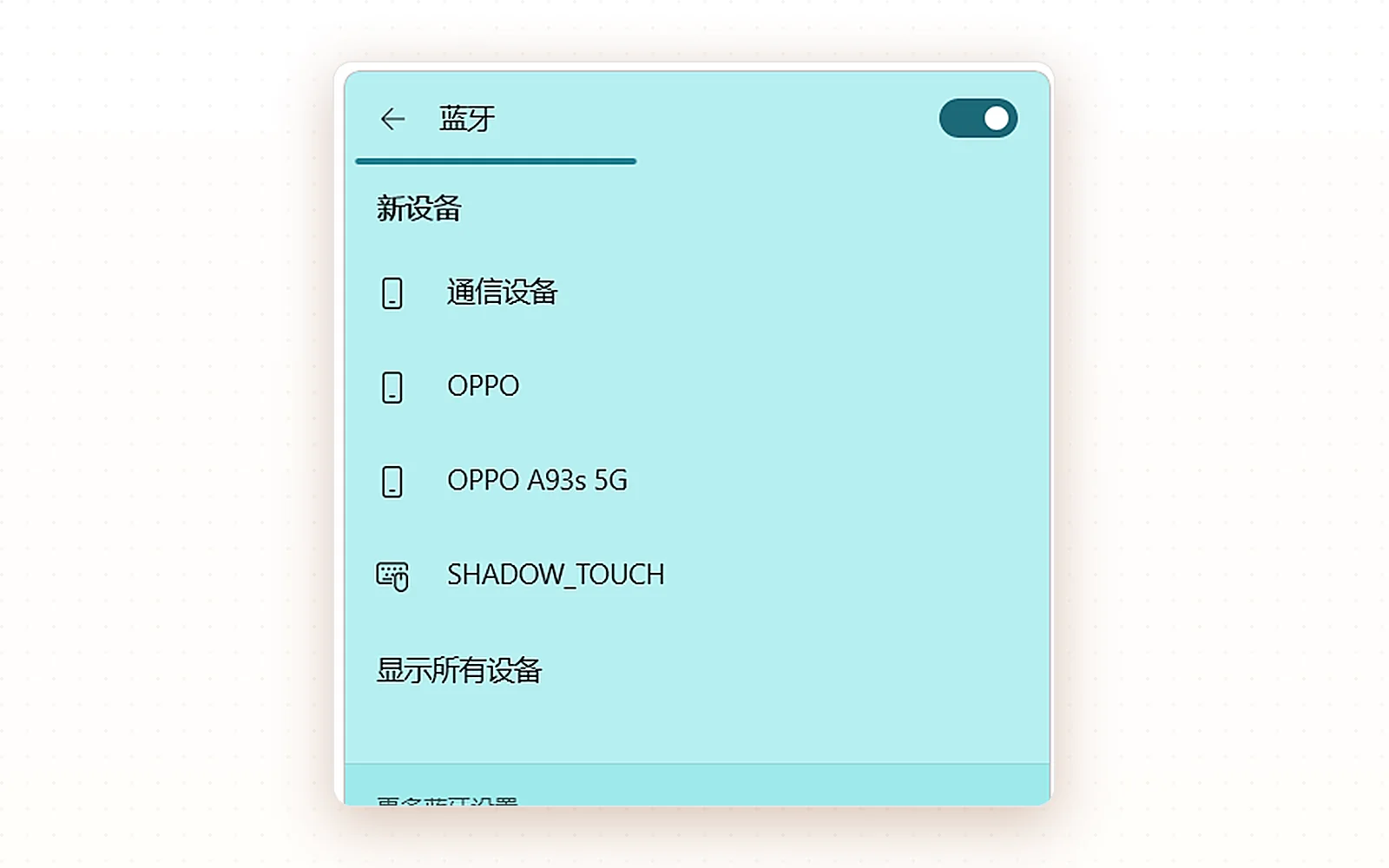
When Bluetooth settings show SHADOW_TOUCH as “Connected” with a battery level, pairing worked. Back on the desktop, drag the pointer and tap to confirm it responds.
If the pointer does not move, remove the old pairing in Bluetooth settings and search again.
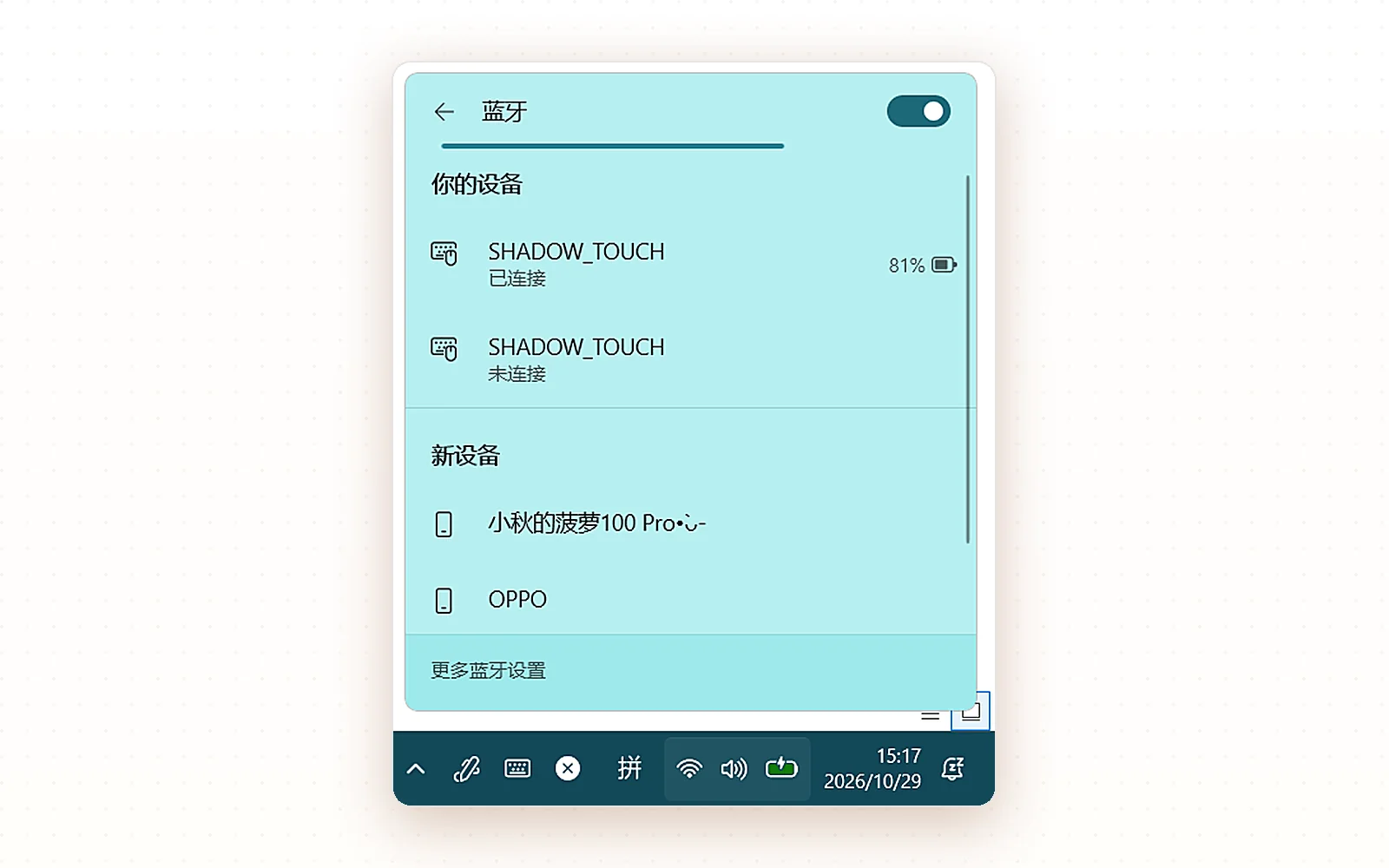
Can't connect? Remove the old SHADOW_TOUCH entry in Bluetooth settings and search again. Desktops need a Bluetooth 4.0 or newer adapter.
App guide
Open the ShadowTouch desktop app, confirm the connection, then remap the five keys to whatever you use.
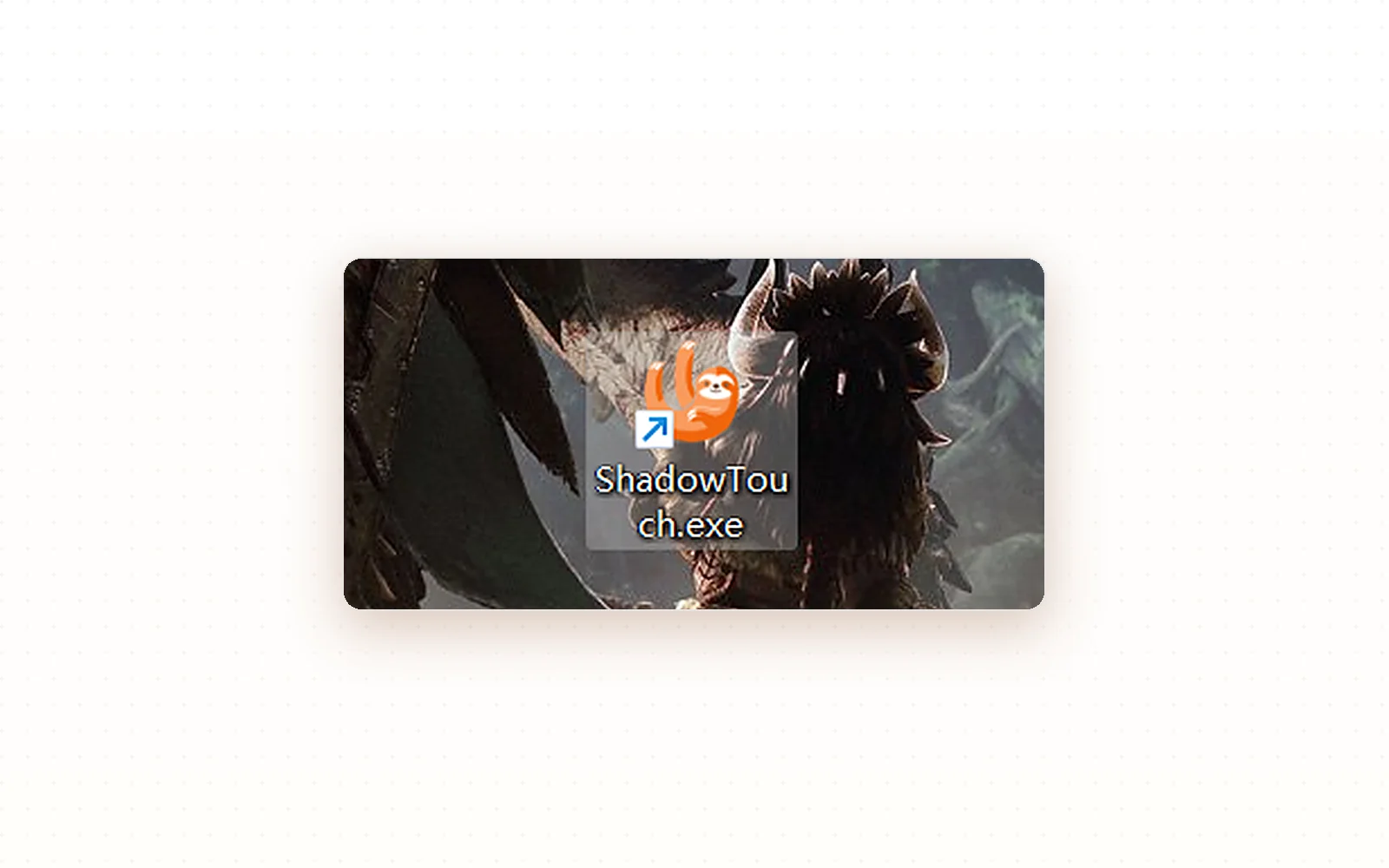
After installing from the download section, double-click the ShadowTouch icon on the desktop, or open it from the Start menu.
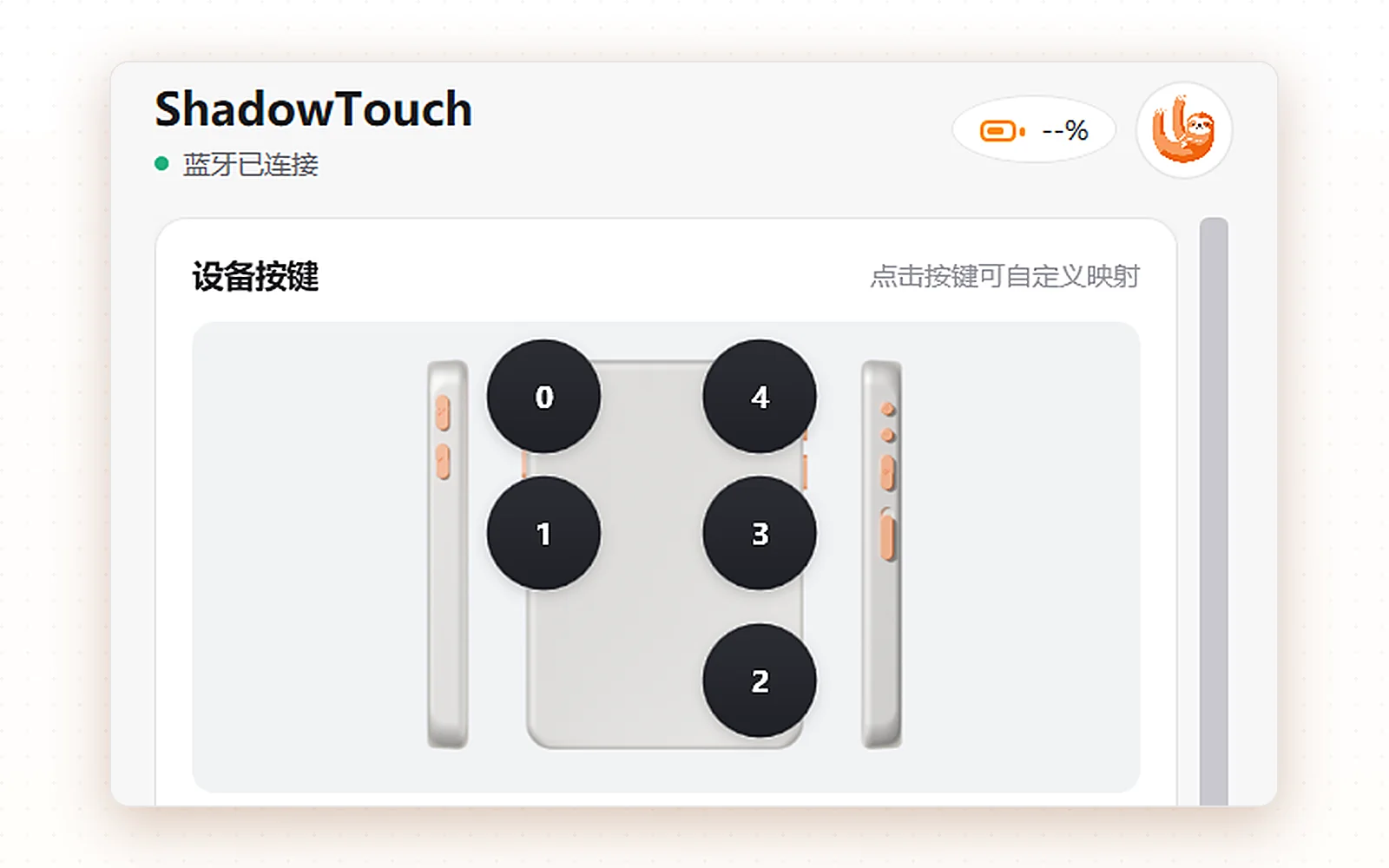
The console shows “Bluetooth connected” and the battery level at the top. The five key positions sit in the middle: cancel and confirm on the left, volume and lock on the right.
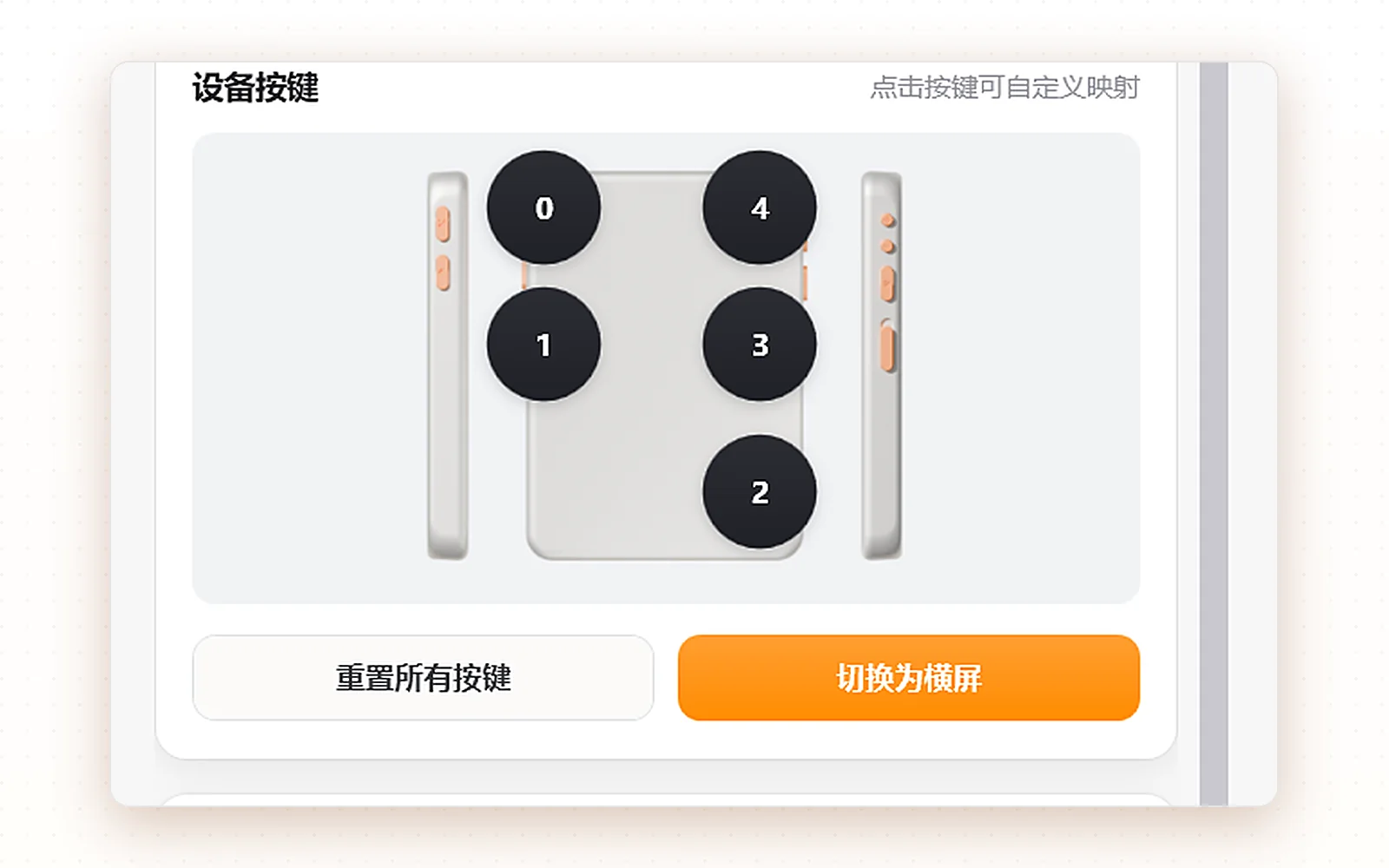
Click any key number to remap it. “Switch to landscape” is there for landscape phone or tablet games.
Works on Android and HarmonyOS — ten steps. The first four connect the pad, the rest turn on the system pointer.
Slide the power switch up. Android and HarmonyOS use the default standard mode; if the indicator is not blue, there is nothing to switch.
Find the Settings app (gear icon) on the home screen and open it.
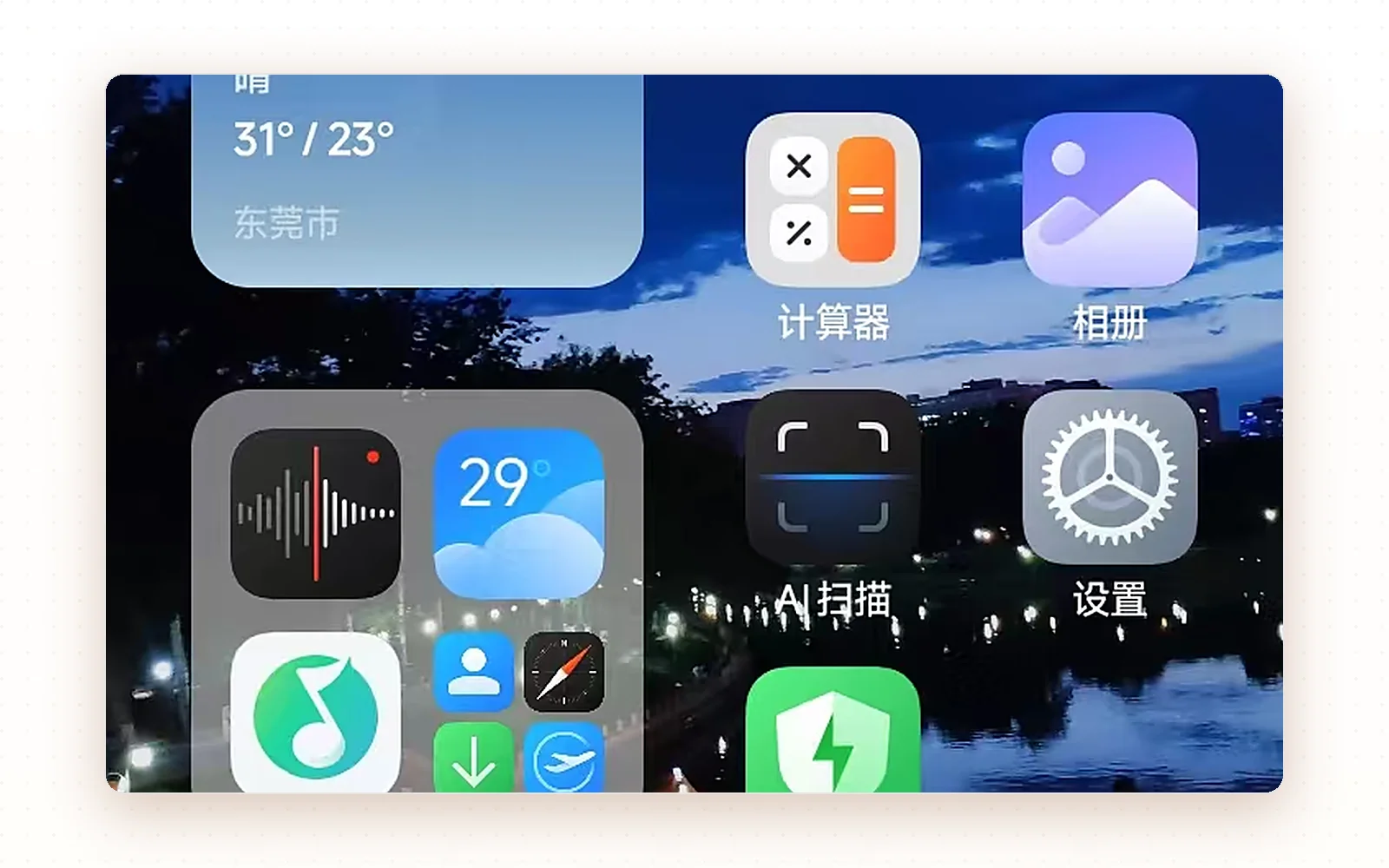
Pull down Control Center and make sure the Bluetooth tile is on. Once the pad is working, you will also see a system notification saying the touchpad is displaying over other apps.
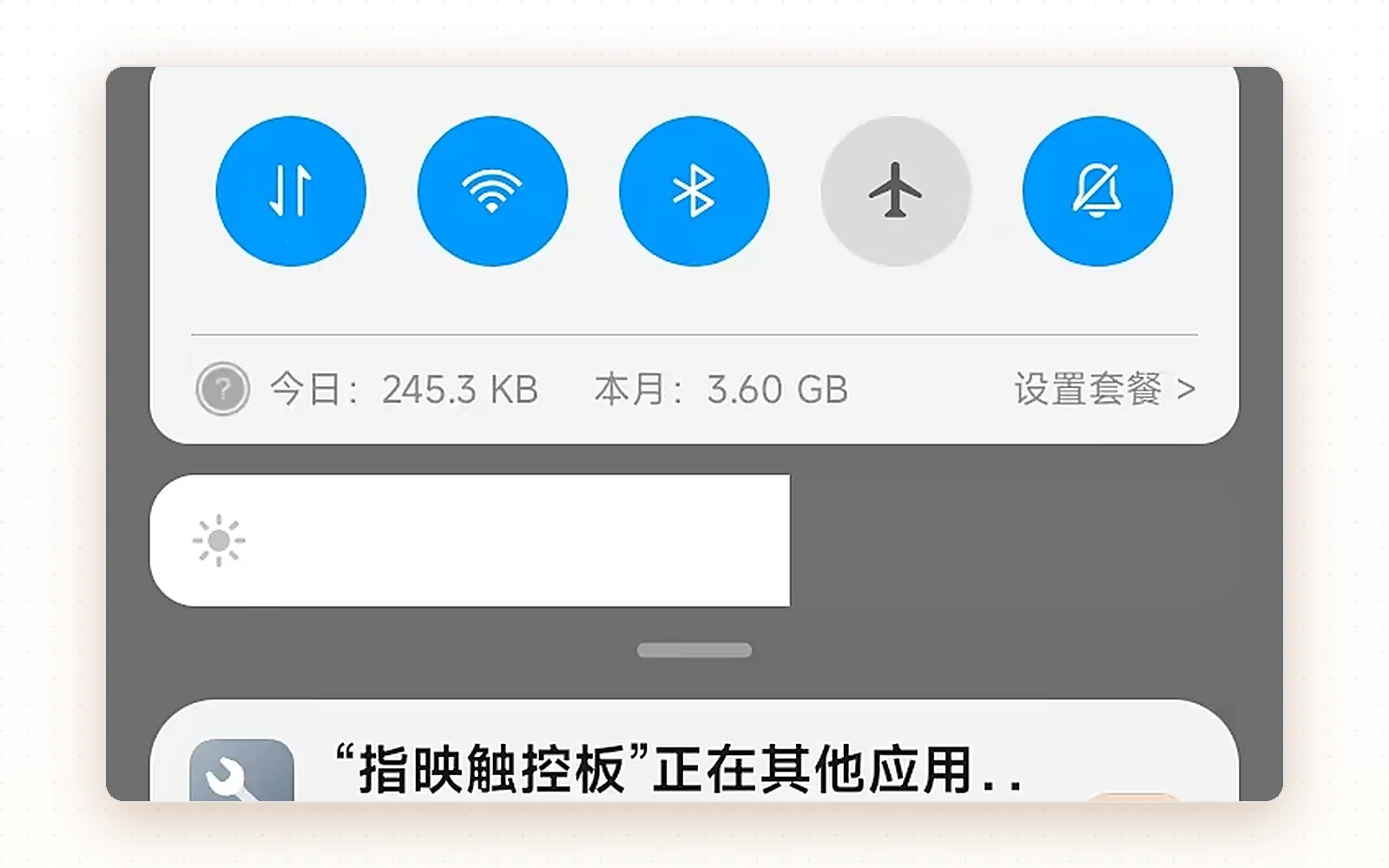
Go to Settings › Bluetooth and tap SHADOW_TOUCH under Available devices. Allow the location permission when asked.
Some phones only find Bluetooth devices while location services are on.
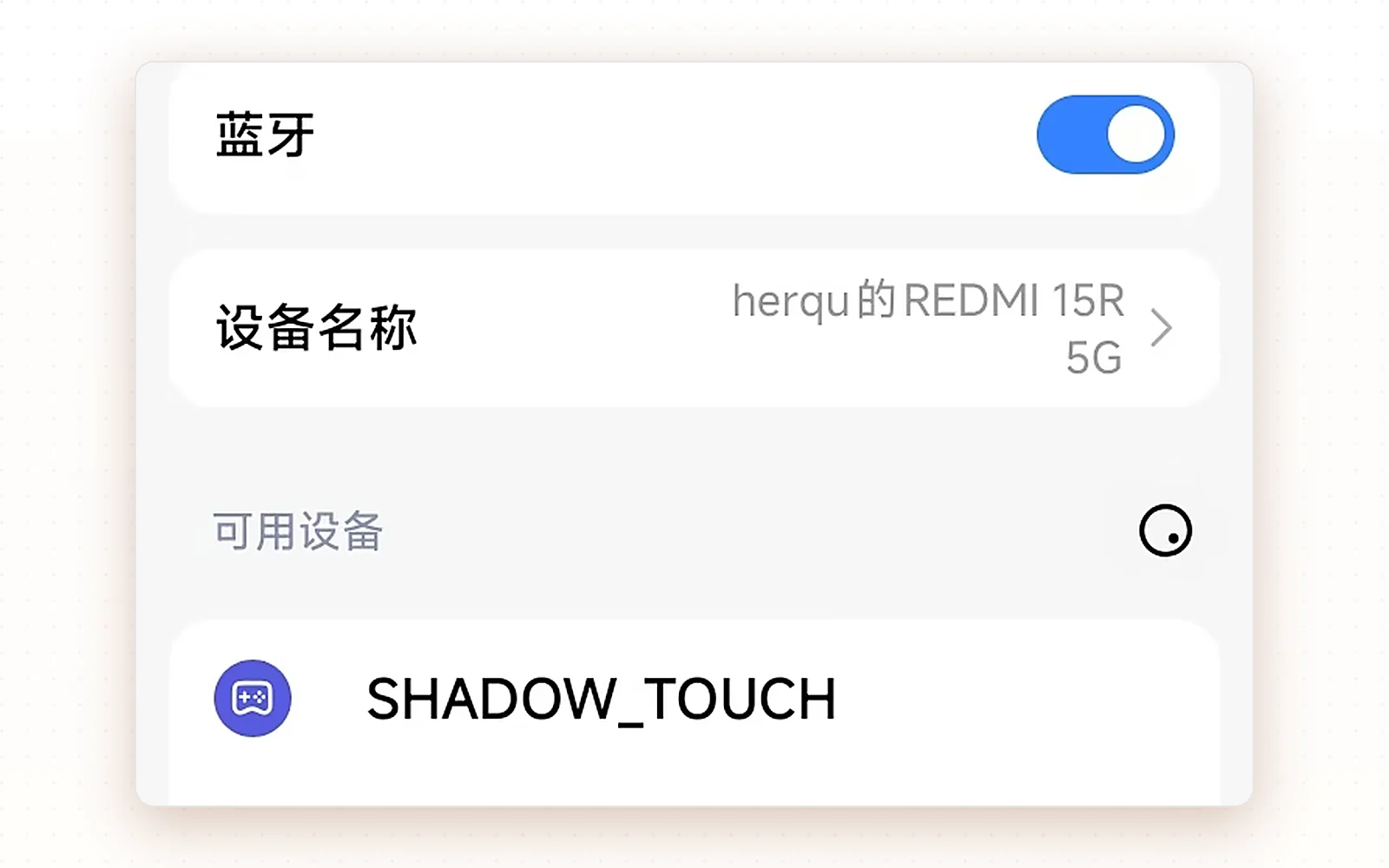
Back on the Settings home screen, tap My device at the top.
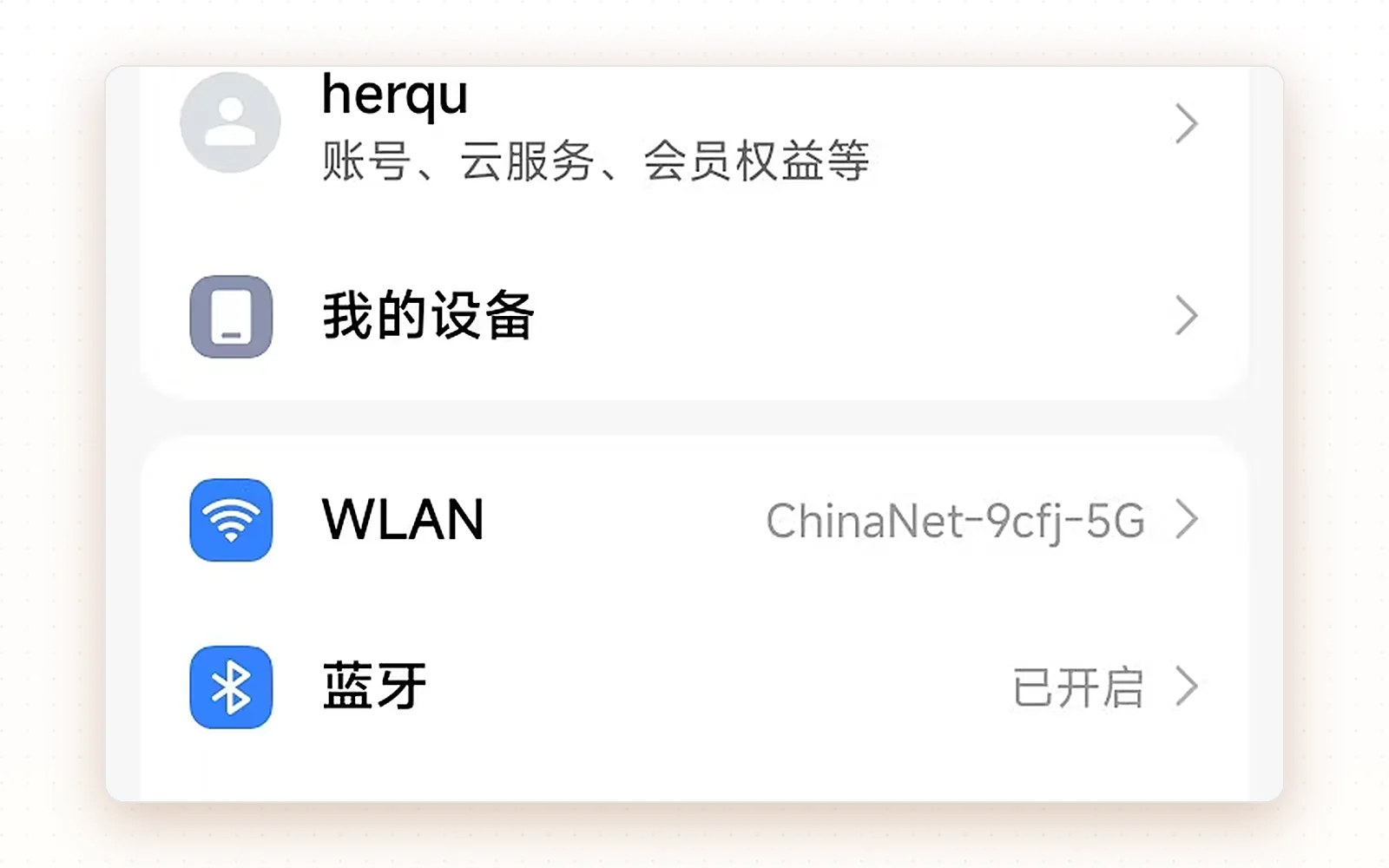
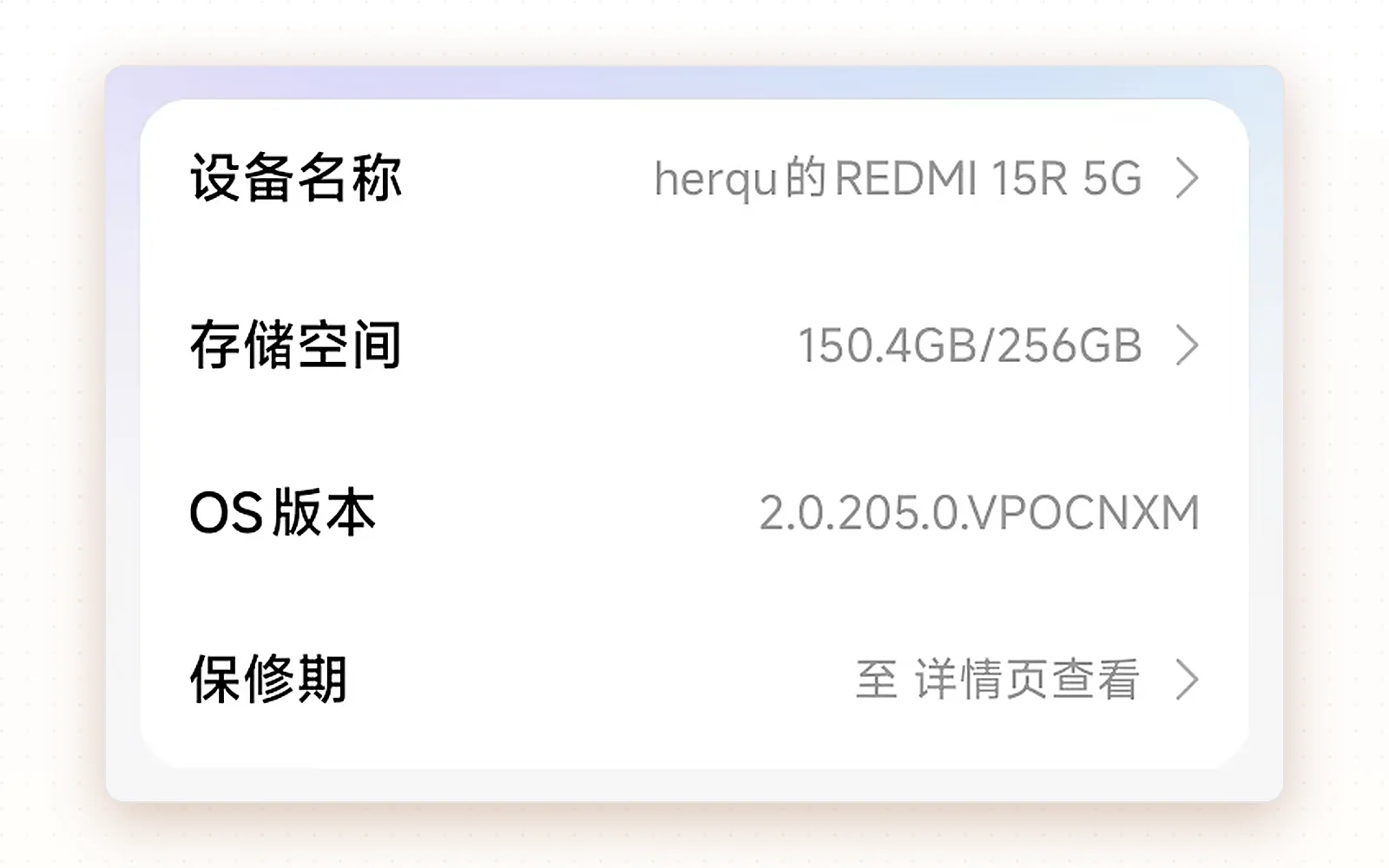
Inside My device, tap OS version seven times. The system confirms that developer mode is on.
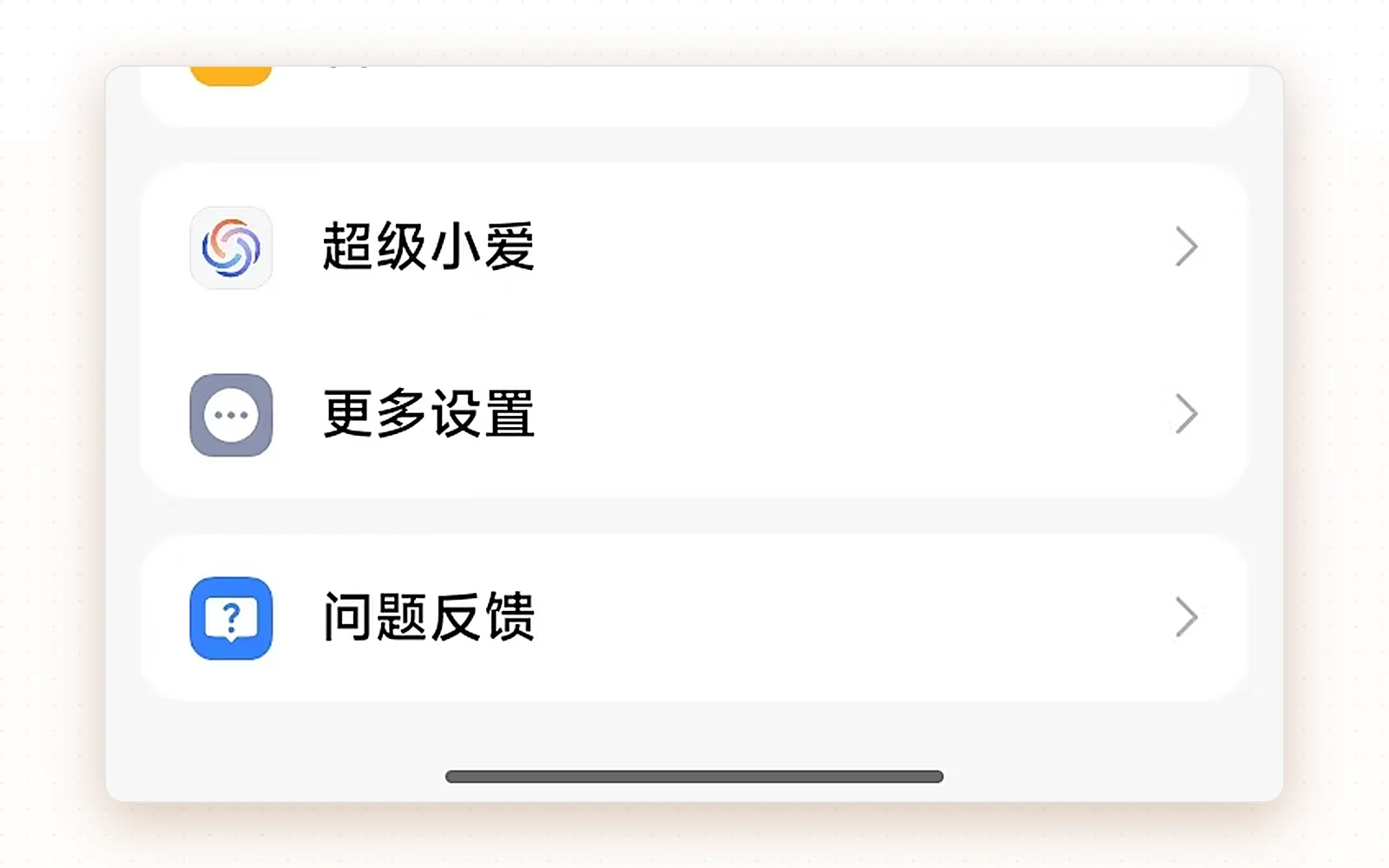
Return to the Settings home screen, scroll to the bottom and open More settings.
Inside More settings, find and open Developer options.
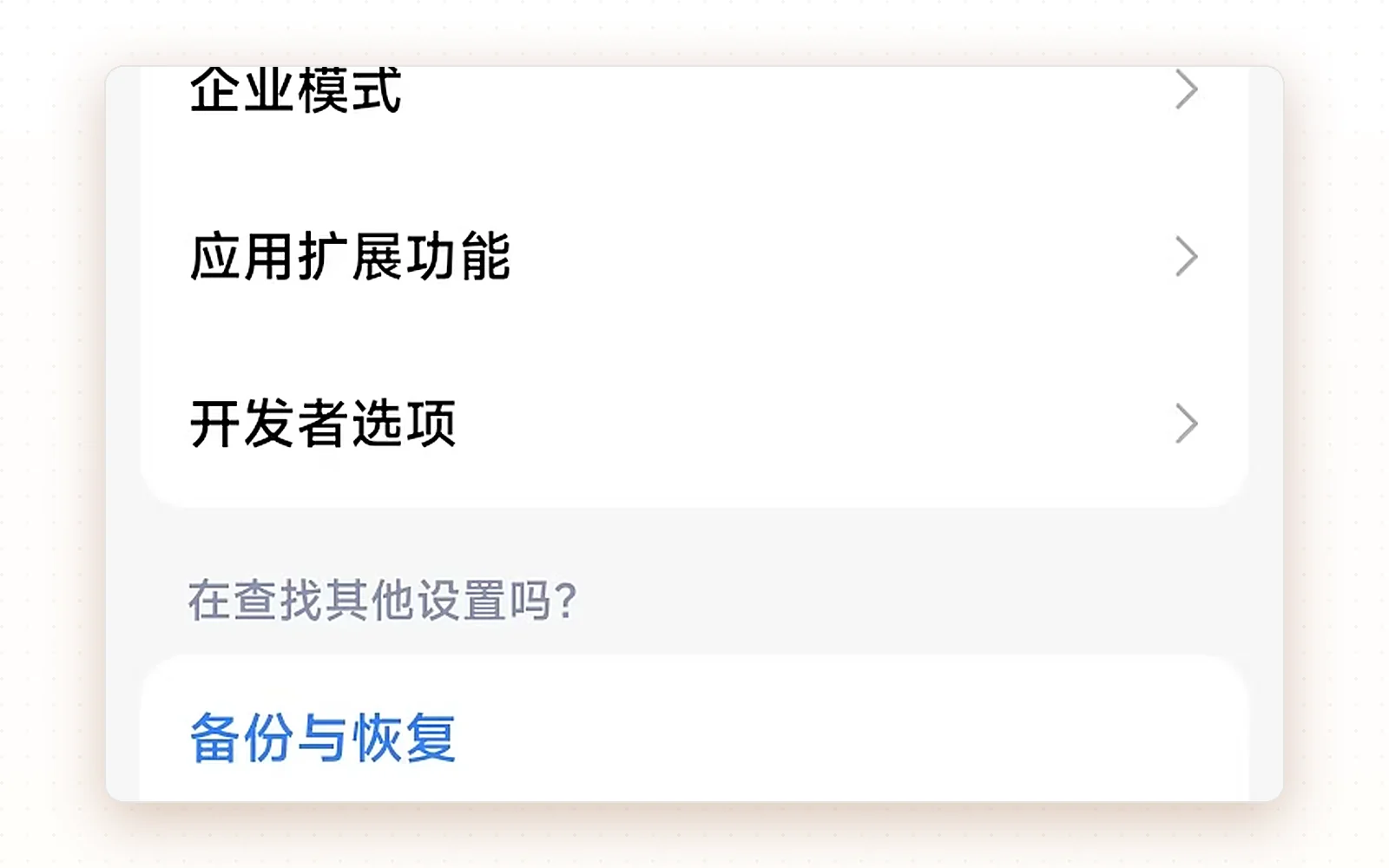
In the Input group, turn on Show taps. The screen now shows a pointer that follows your finger.
On some phones the floating dot still does not appear after enabling Show taps — install the ShadowTouch app to get a working pointer.
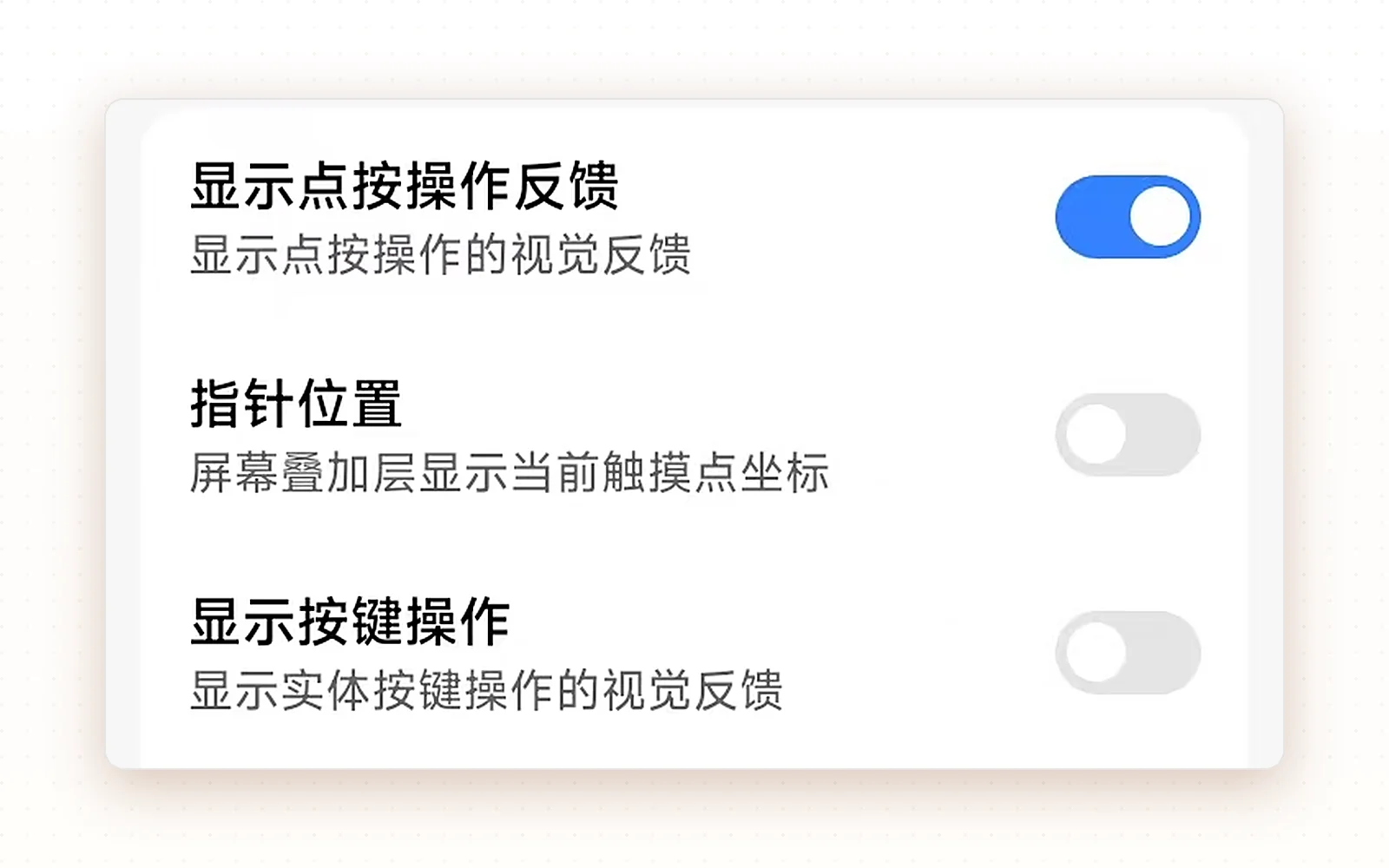
Return to the home screen and hover your finger over the pad: the pointer should follow, and a tap on the pad is a click.
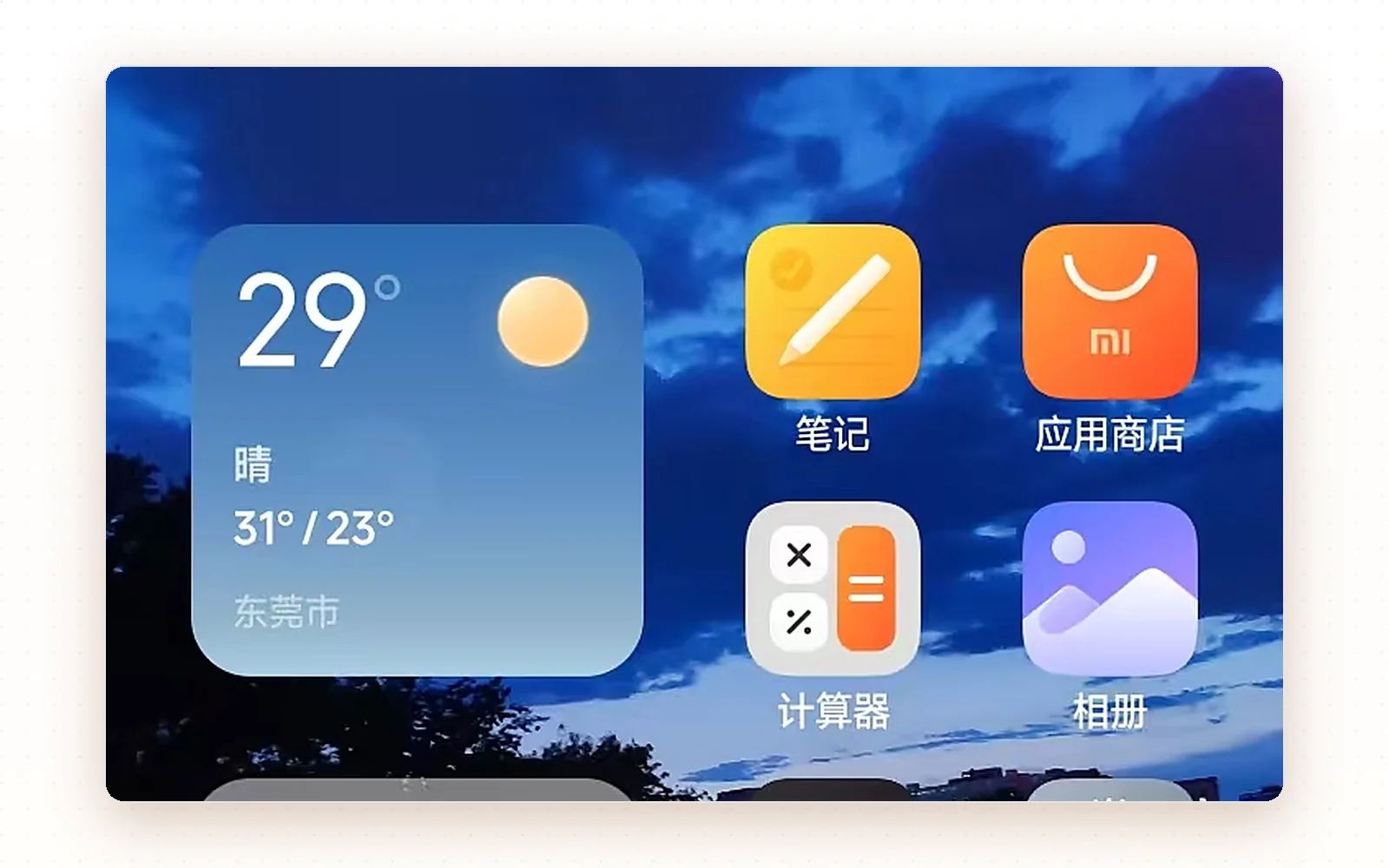
No floating dot? On some phones even “Show taps” does not show it. Install the ShadowTouch app and allow it to display over other apps.
App guide
The app draws the floating pointer and handles gestures. On first launch it asks for location, nearby devices and the overlay permission.
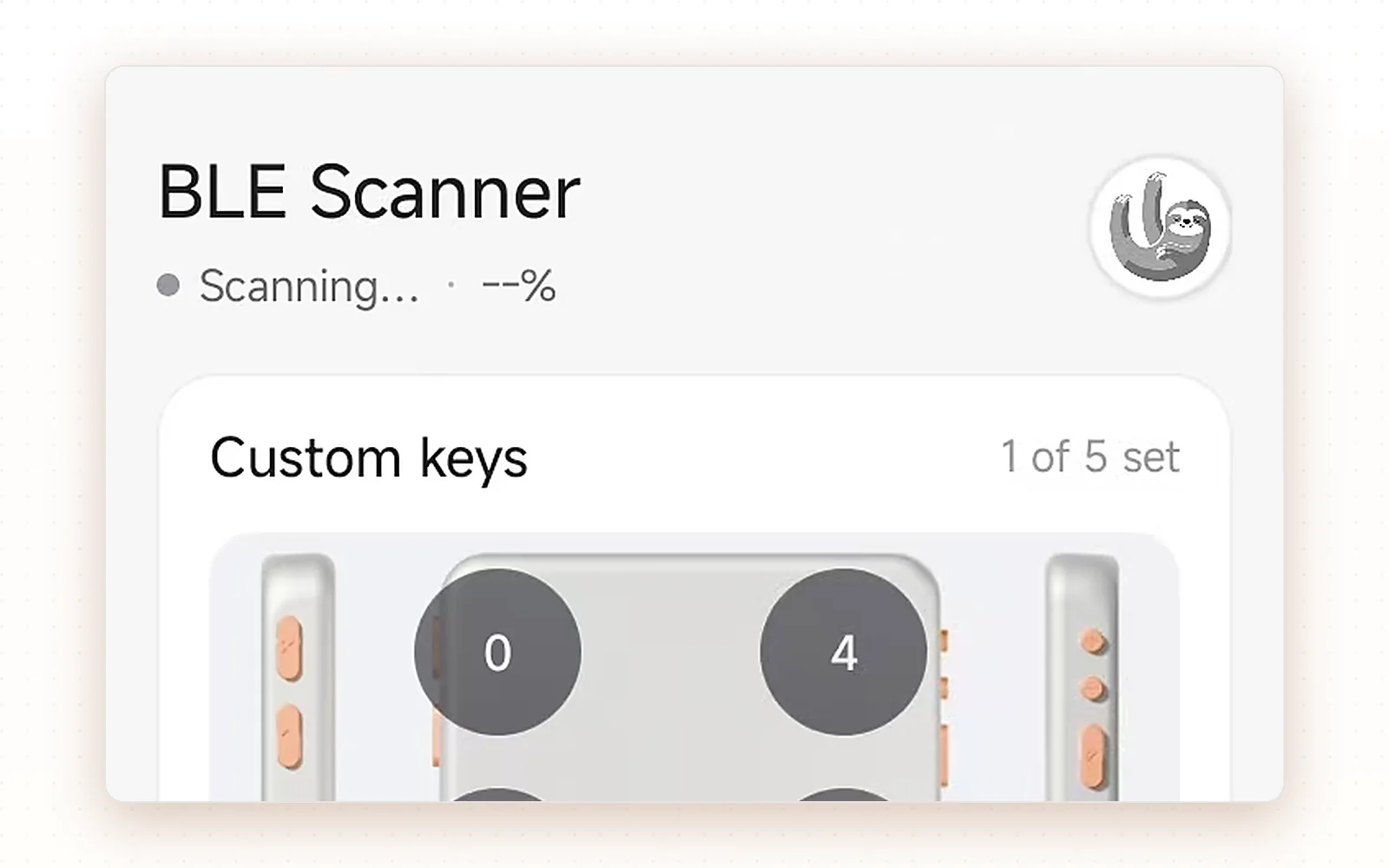
Launch the app; it scans for the pad automatically and shows “Scanning…” at the top.
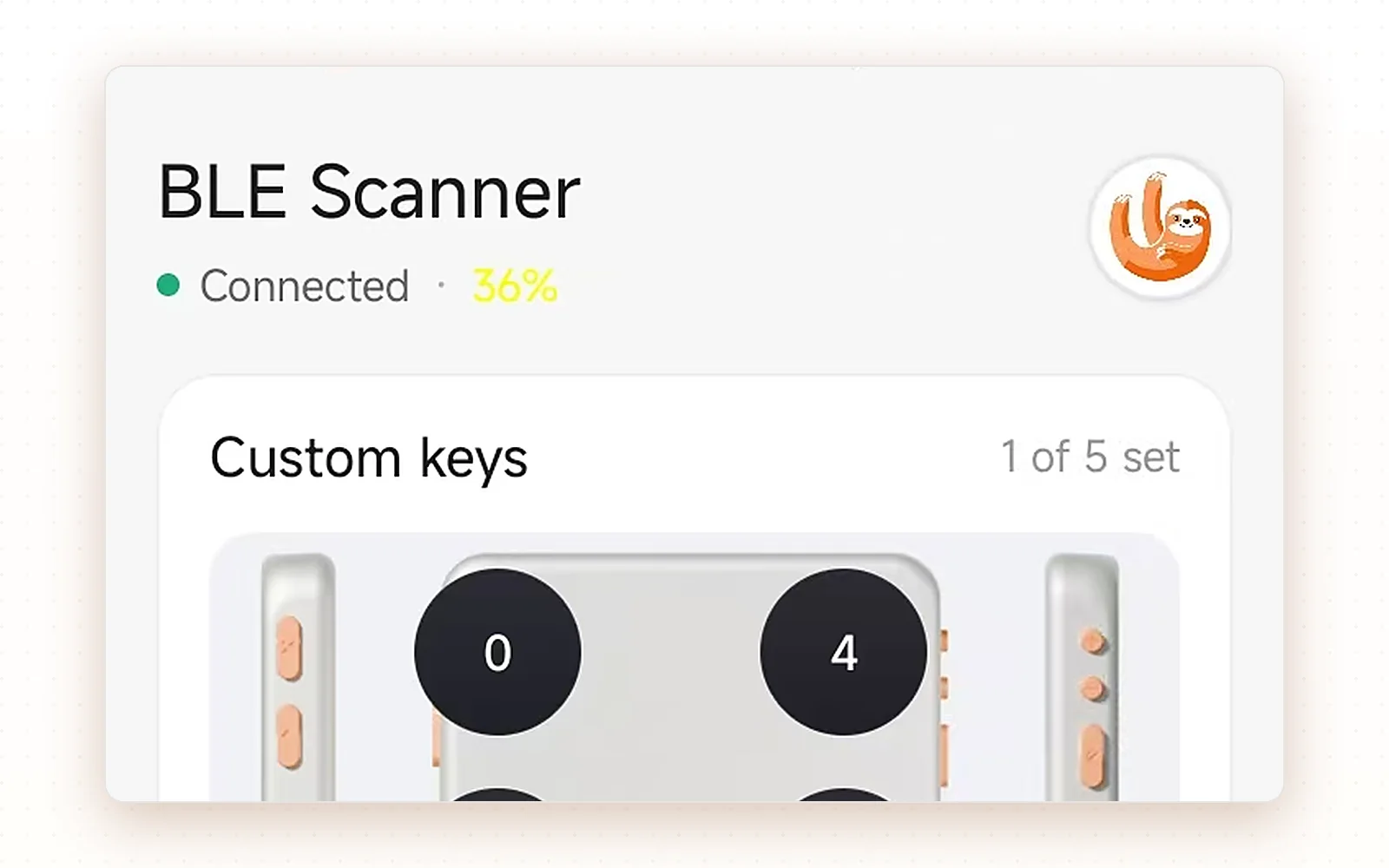
It connects on its own — “Connected” plus a battery level at the top means you are done.
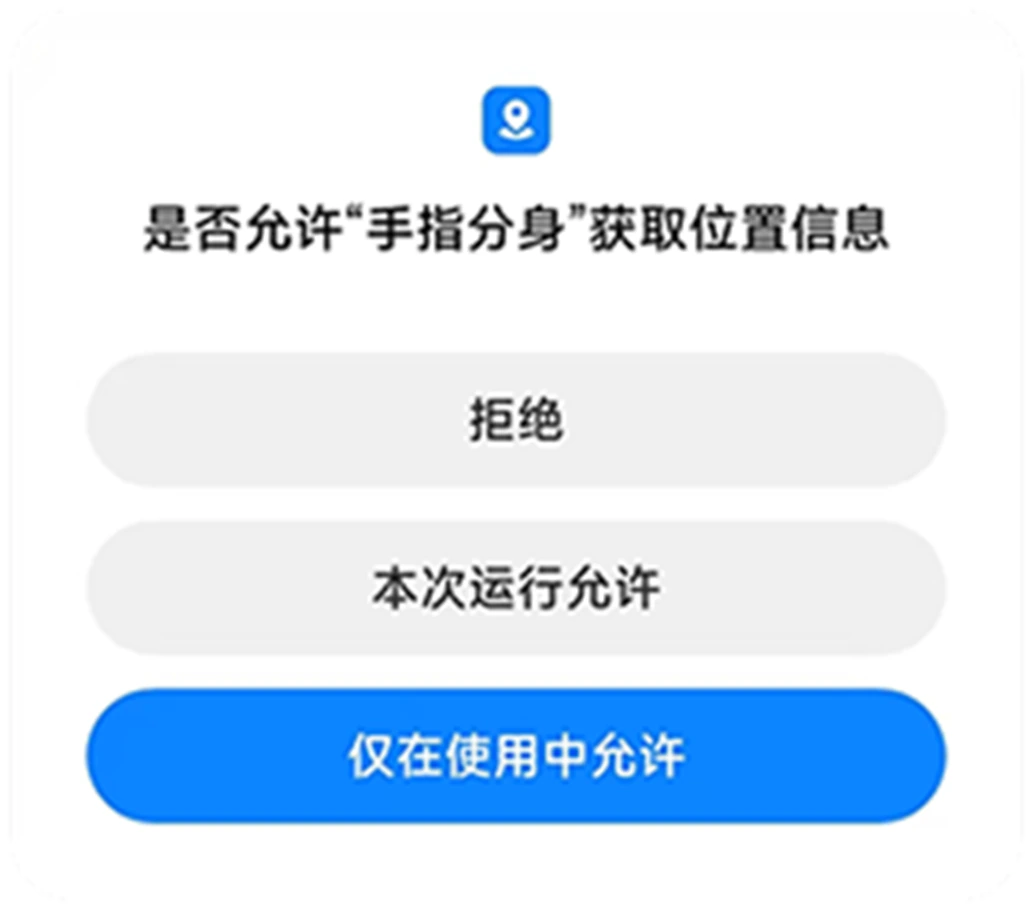
On first launch, choose “Allow only while using the app”.
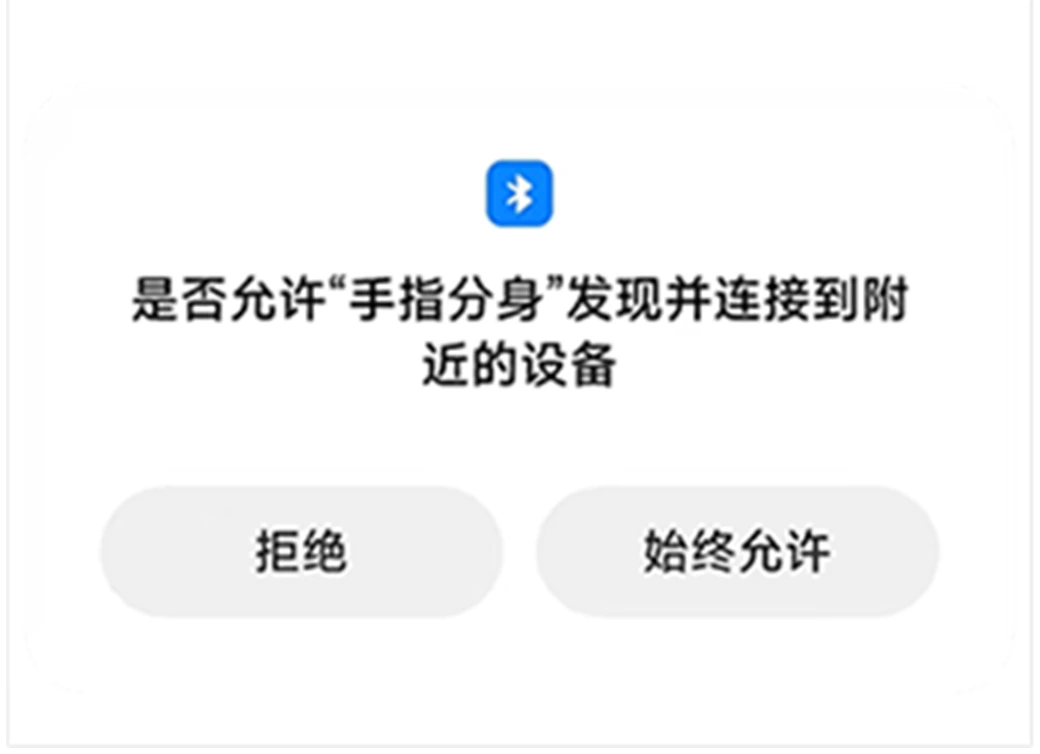
Next it asks to discover and connect to nearby devices. Allow it, otherwise the pad cannot be found.
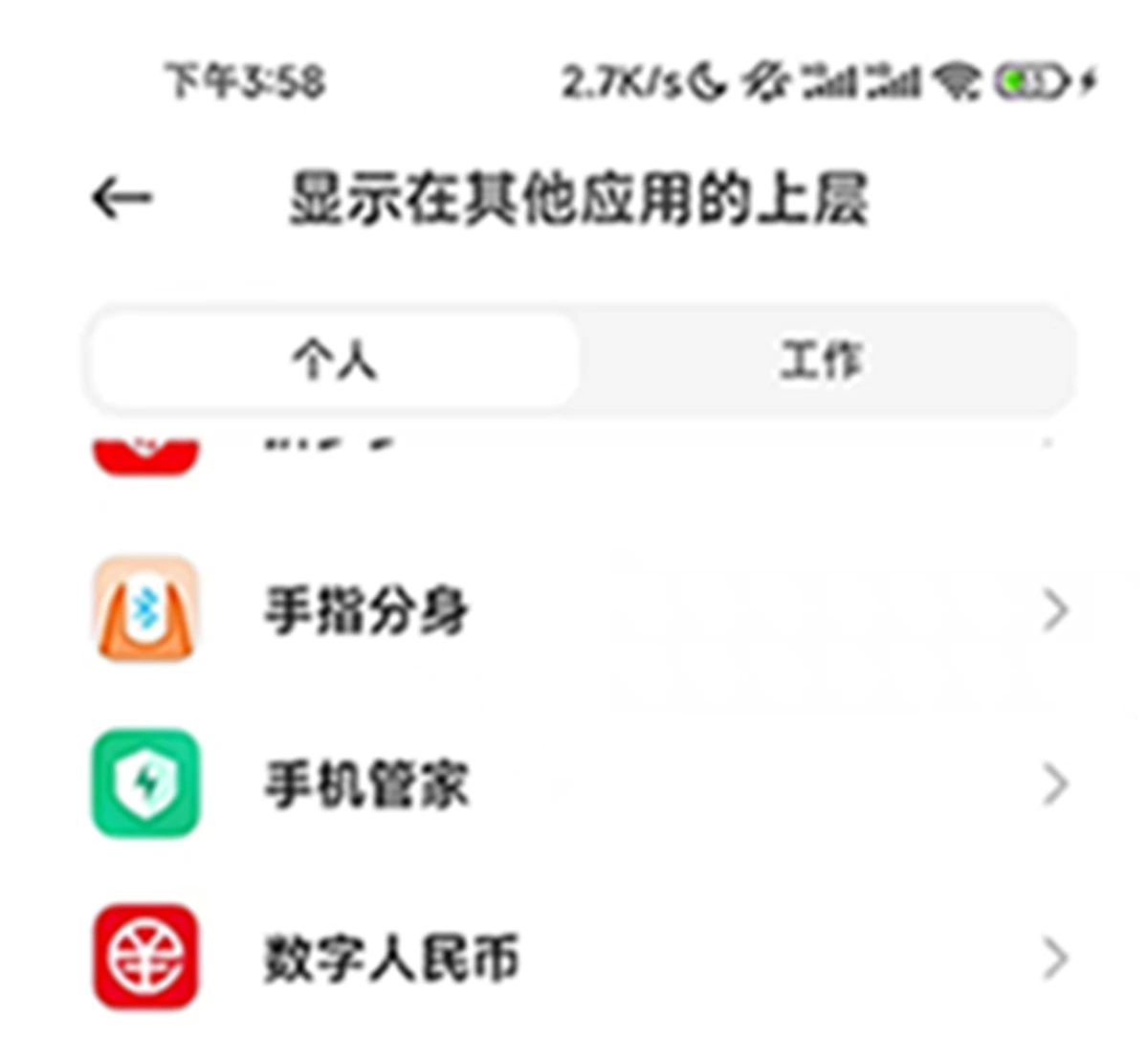
Go to Settings › Apps › Special access › Display over other apps and find the app in the list (its system name is 手指分身).
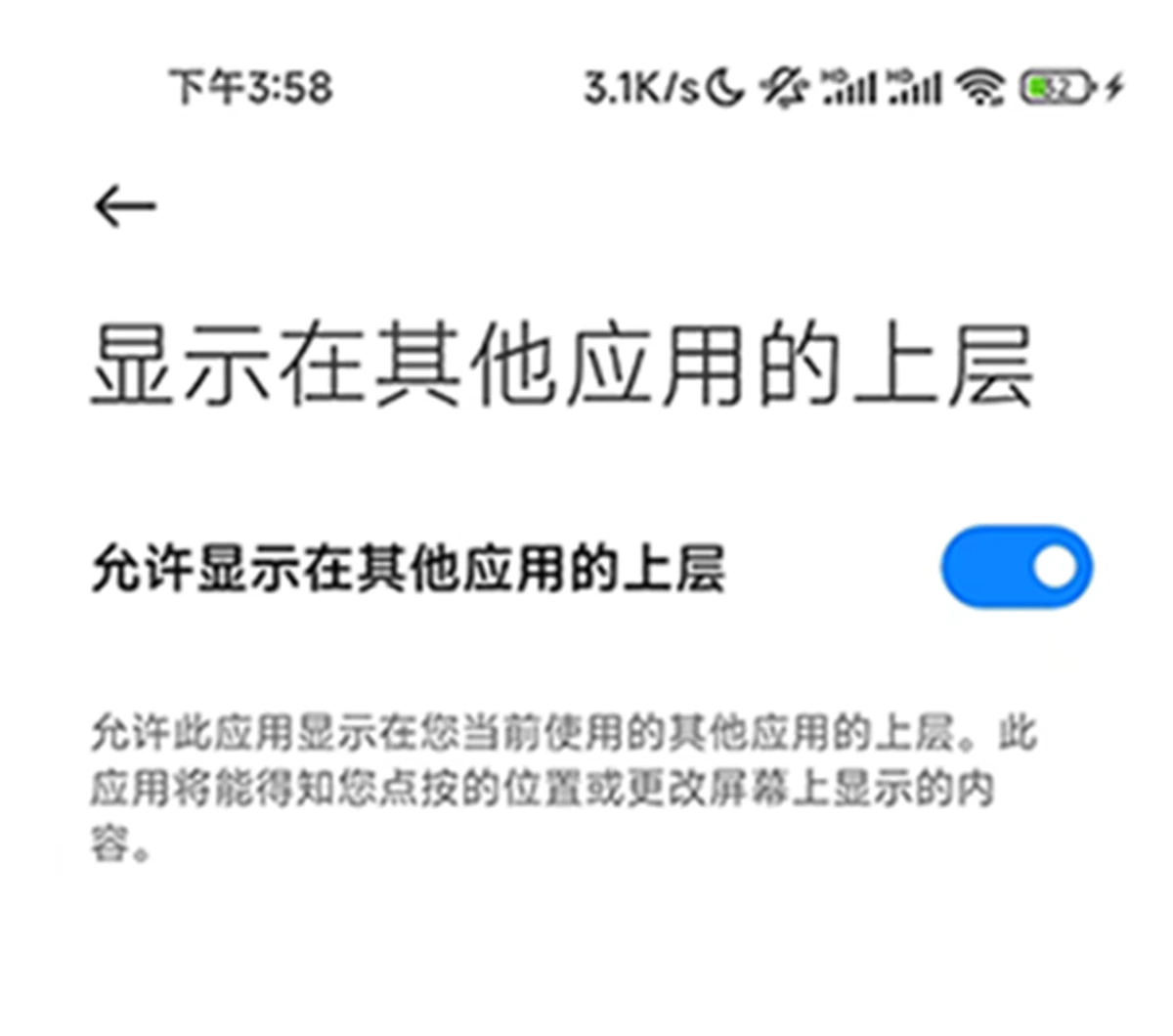
Enable “Allow display over other apps” so the app can draw the pointer above other apps.
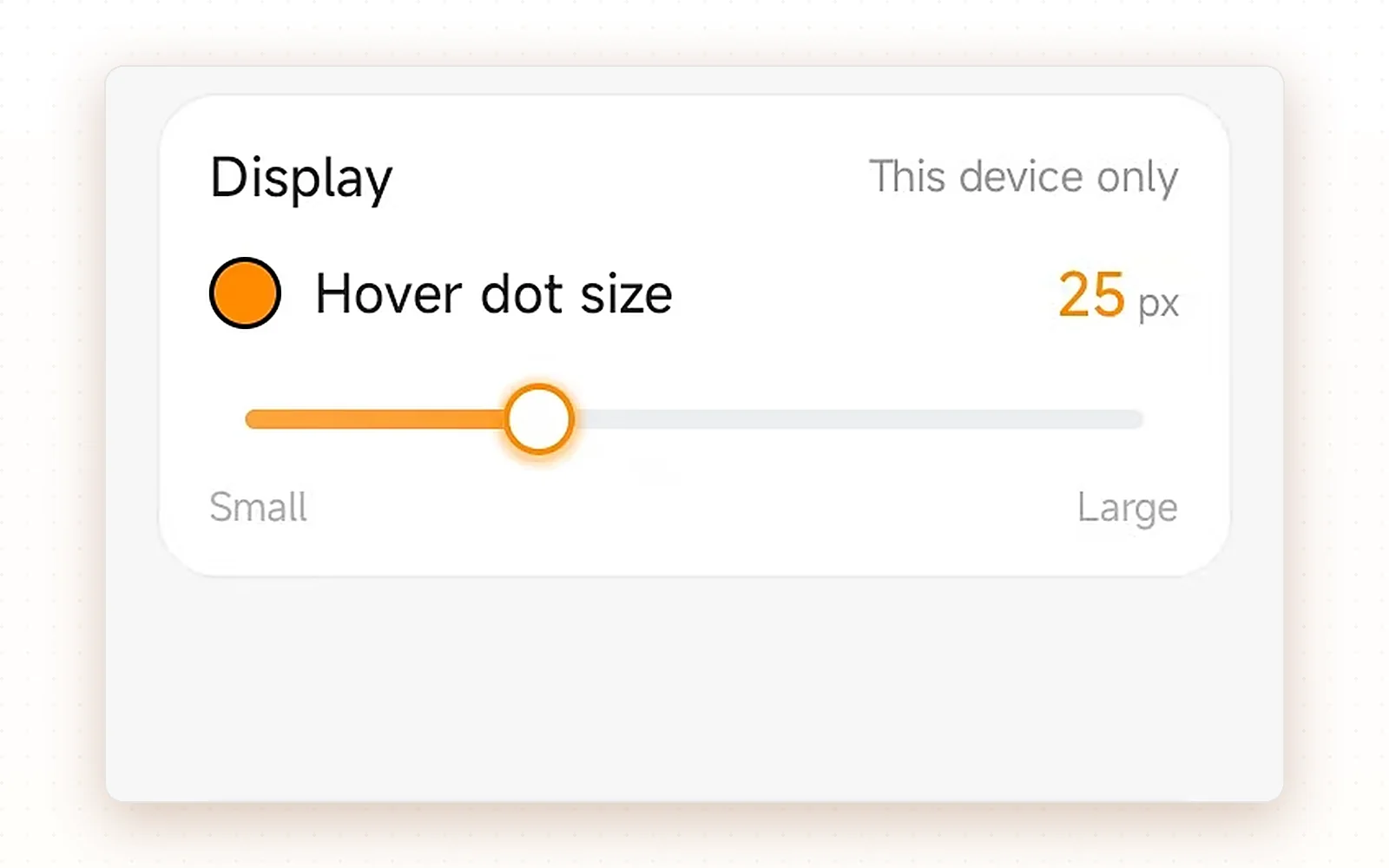
Drag the slider under Display to size the hover dot; Custom keys remaps the five keys, Switch to landscape flips the orientation, and Shortcuts holds your quick actions.
No app required. After pairing, use the built-in AssistiveTouch pointer and customize buttons under Pointing Devices.
Screenshots show the Chinese iOS UI; the menu path and icons are the same in other languages.
A blue indicator means Apple mode.
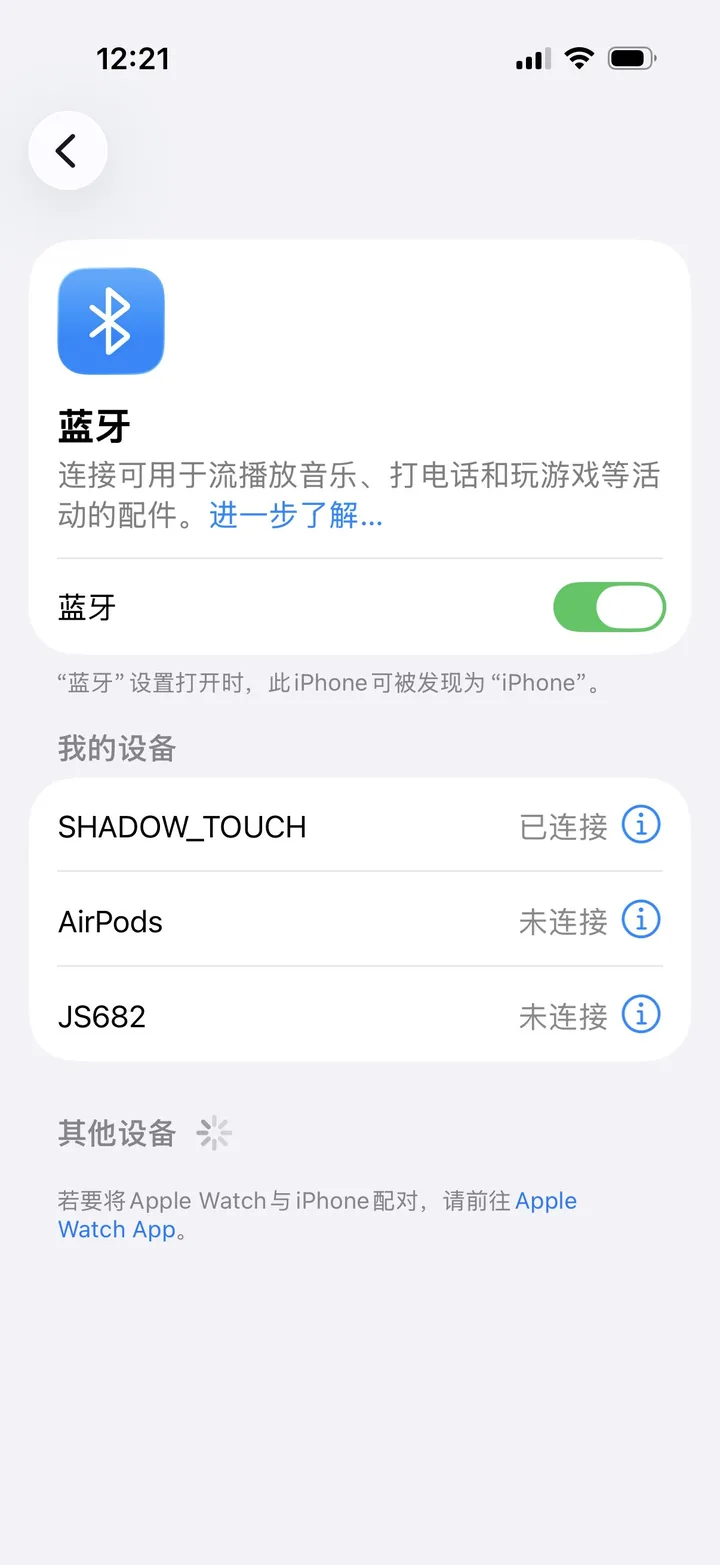
Open Settings › Bluetooth, choose SHADOW_TOUCH and pair.
The ID shown below the name identifies this pad when more than one is nearby.
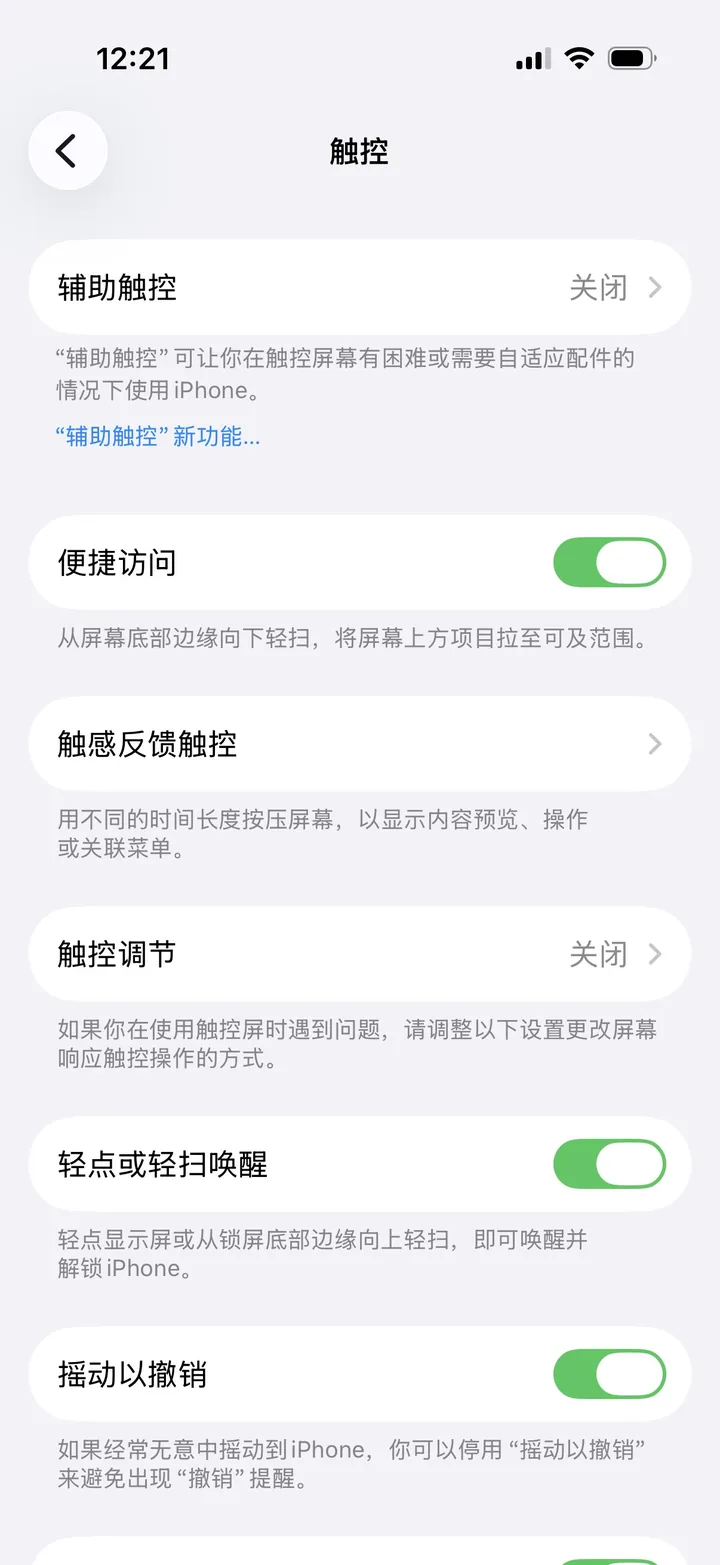
Go to Settings › Accessibility › Touch › AssistiveTouch.
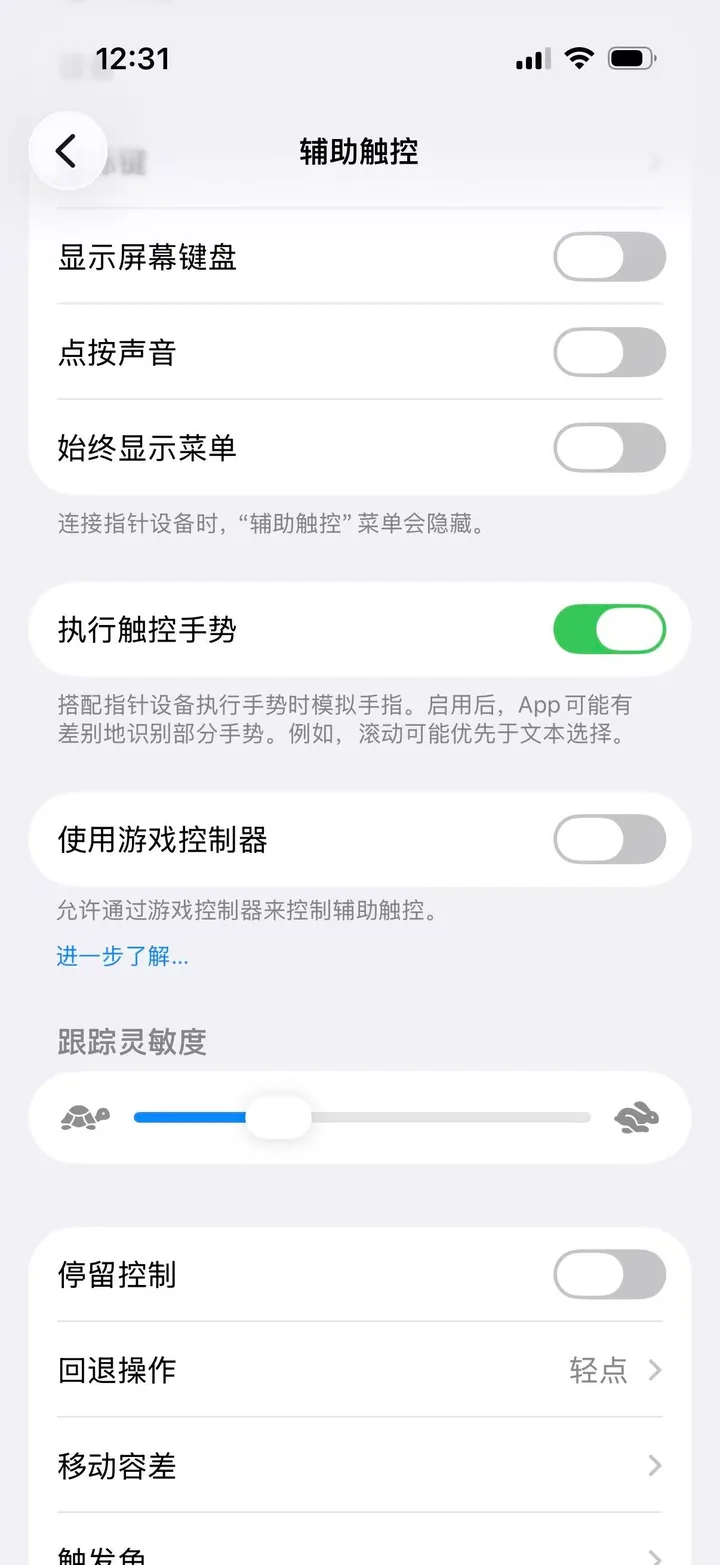
Turn on AssistiveTouch, then turn on “Perform Touch Gestures”.
Without “Perform Touch Gestures”, the pointer may move but clicks and drags will not work. With a pointing device connected, the AssistiveTouch menu is hidden by default; turn on “Always Show Menu” if you want it visible.
iPhone and iPad treat the pad as a pointing device. Button mapping is done in AssistiveTouch › Pointing Devices — no ShadowTouch app is needed. Menu names can vary slightly between iOS / iPadOS versions.
Scroll to “Pointing Devices”, tap “Devices”, then choose SHADOW_TOUCH.
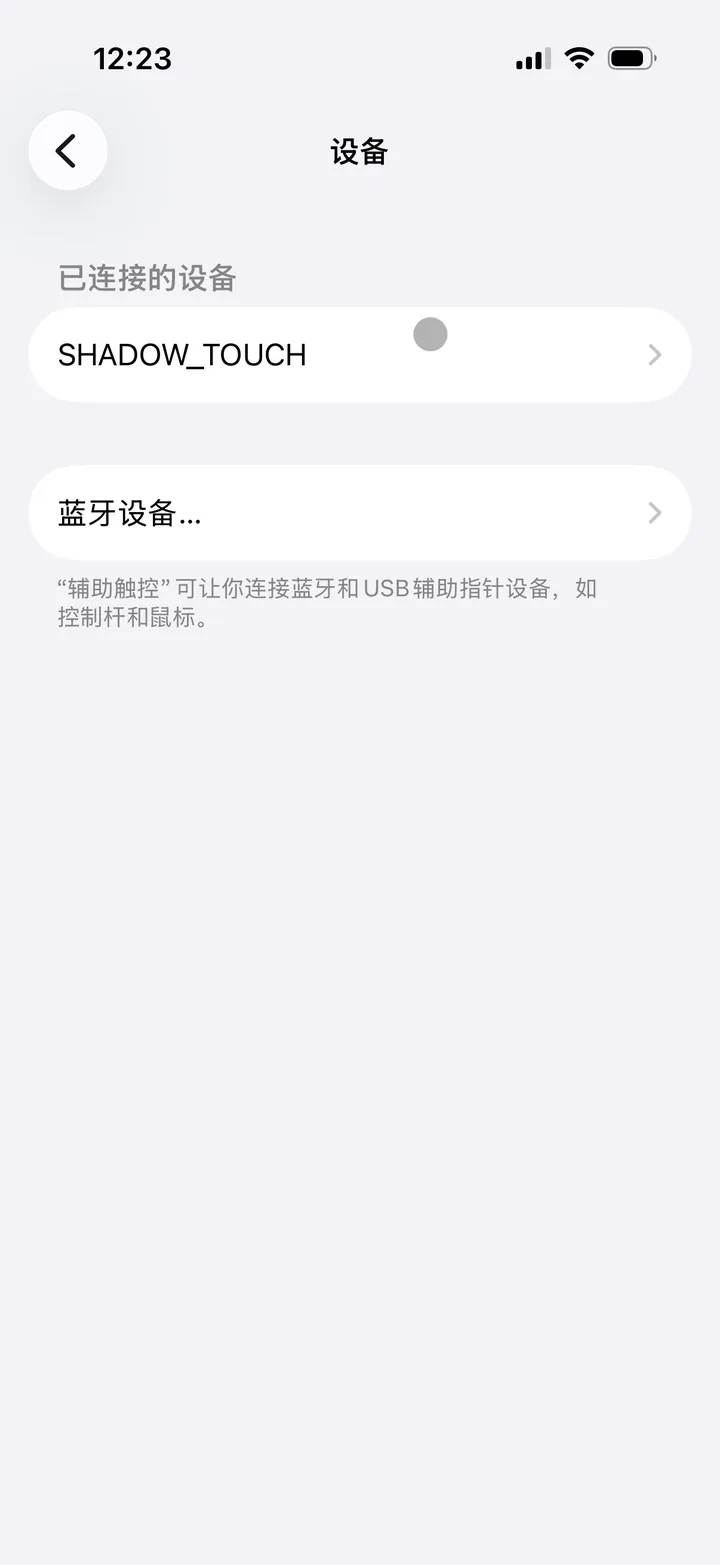
Tap “Customize Additional Buttons…”. If the page says AssistiveTouch must be enabled, go back and turn it on first.
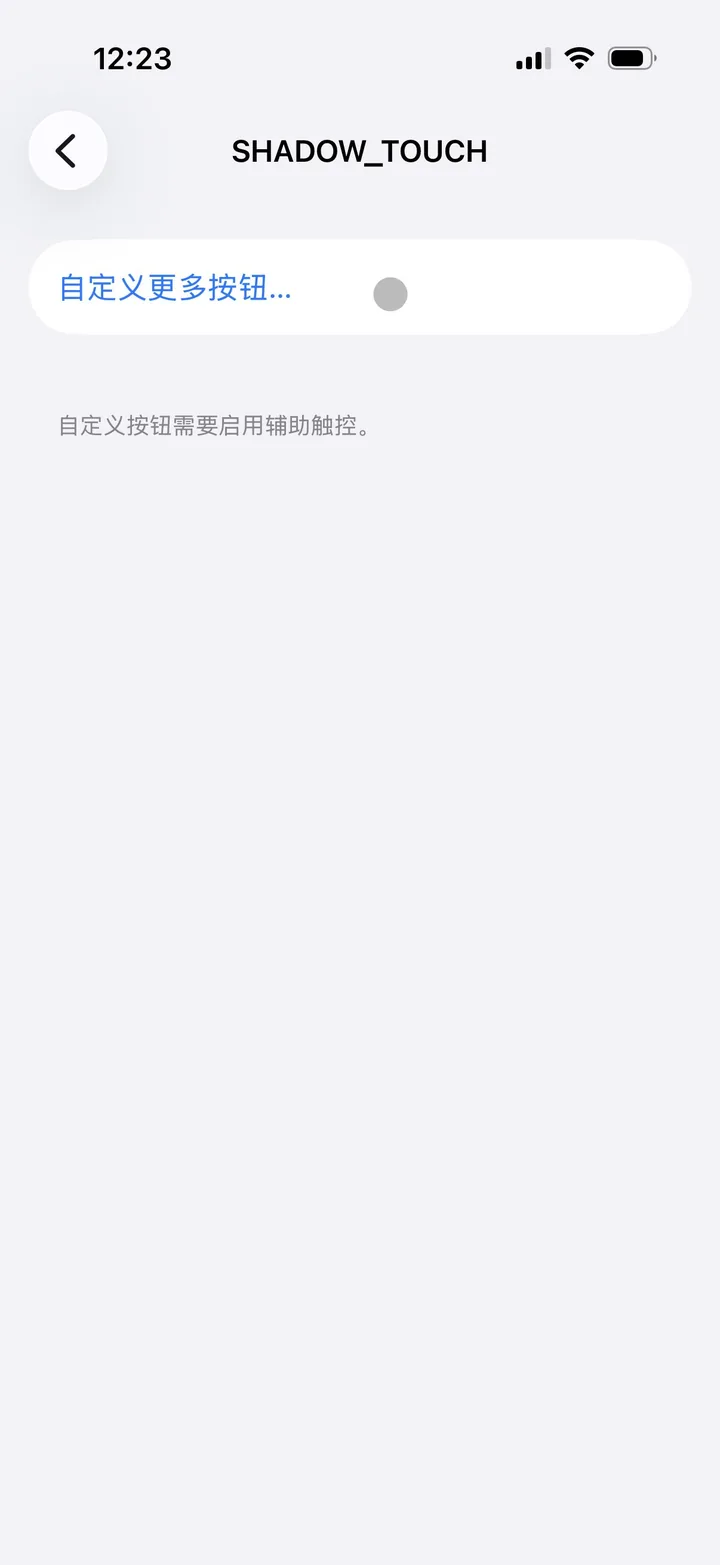
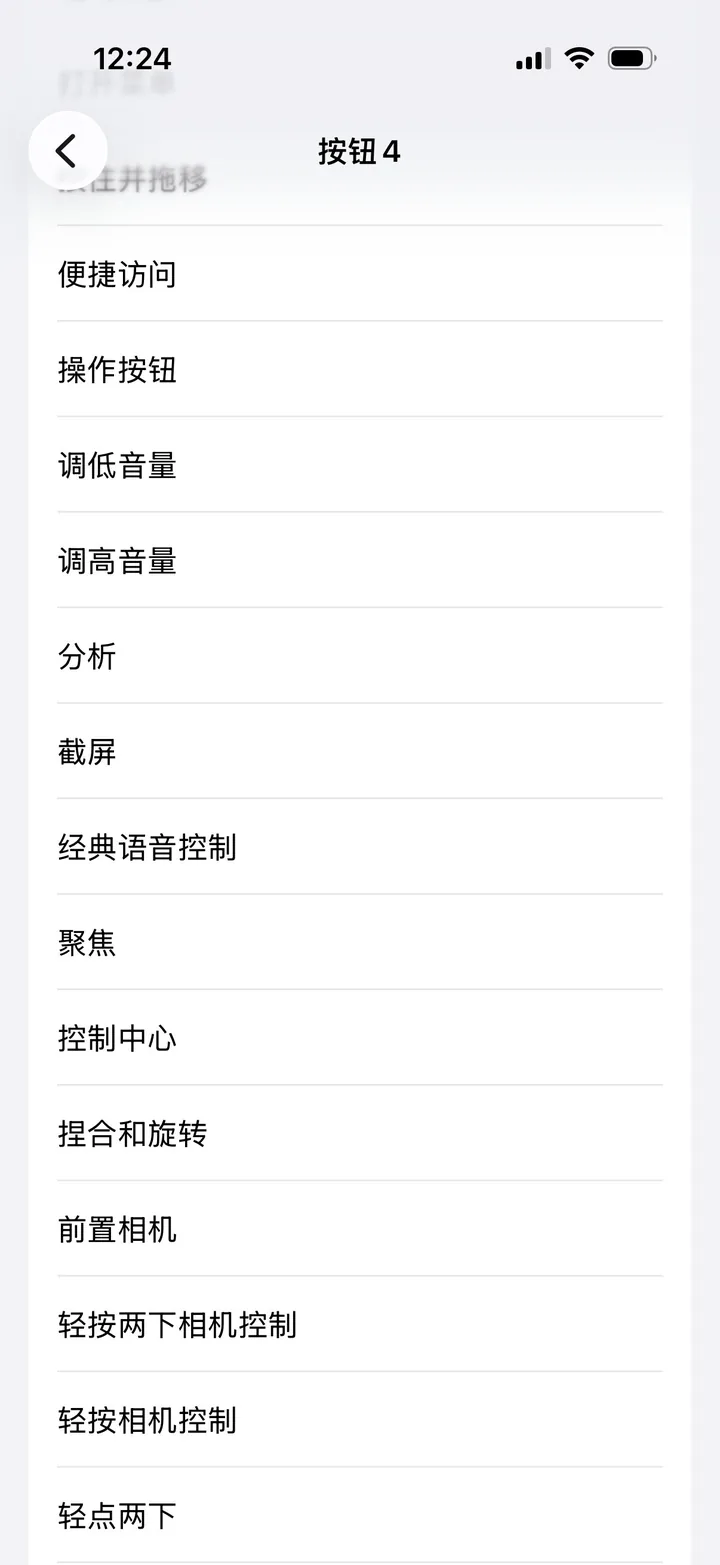
Choose Button 1 / 2 / 3 / 4, then pick an action from the system list, such as Screenshot, Control Center, Volume Up or Double Tap.
Only AssistiveTouch actions can be assigned. You cannot map a button directly to an in-app shortcut, and buttons missing from the list cannot be mapped.
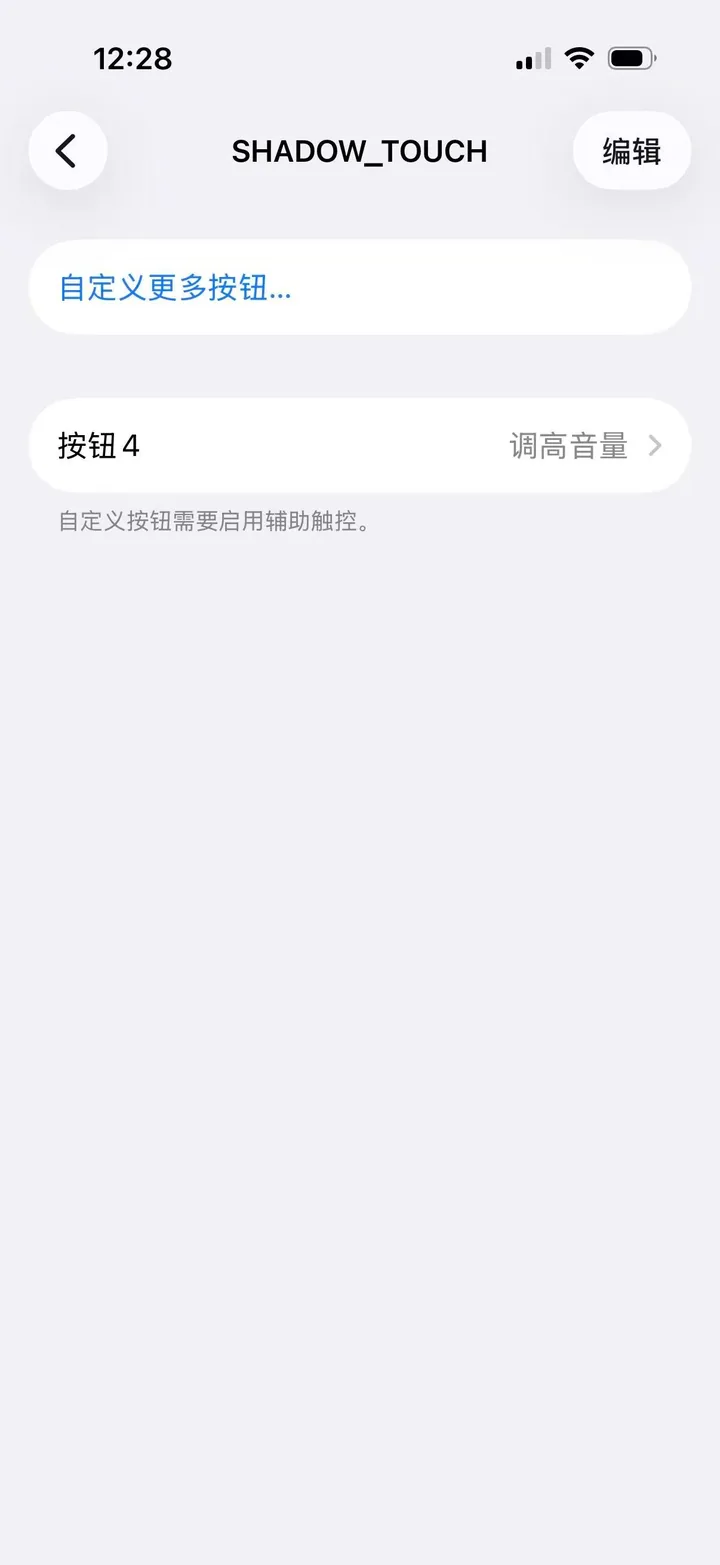
Back on the SHADOW_TOUCH page, you will see the saved mapping, e.g. “Button 4 · Volume Up”. Tap it again to change it.
Check in this order: blue mode → AssistiveTouch → Perform Touch Gestures → old pairing.
Confirm that both AssistiveTouch and “Perform Touch Gestures” are on. If not, turn AssistiveTouch off and on again; or forget the device in Bluetooth and pair again.
Confirm the pad is on and the indicator is blue. Toggle Bluetooth off and on, remove any old SHADOW_TOUCH pairing, restart both devices and search again.
Check that AssistiveTouch is on; open AssistiveTouch › Pointing Devices › Devices and confirm SHADOW_TOUCH is connected; then toggle “Perform Touch Gestures” off and on.
AssistiveTouch must be enabled first. Confirm you edited the currently connected SHADOW_TOUCH, then reopen Customize Additional Buttons. Buttons that are not listed cannot be mapped.
Pair each device once first. Turn on Bluetooth on the target device, then hold Volume− + Volume+. If it still fails, disconnect from the current device and try again.
Apple devices must be in blue mode. If you previously paired in Android mode, clear the pairing, switch modes, restart and pair again.
No app needed
Connecting and button mapping are handled by the system. Pointer size, colour and idle opacity are under AssistiveTouch › Pointer Style.
Path: Accessibility › Touch › AssistiveTouch › Pointer Style.
Switching guide
Press the key combo to put the pad into switching mode, then follow the system setup guide above to pair the second device.
Hold both volume keys on the right side of the pad. It enters switching mode (the indicator blinks) and stops sending input to the current device.
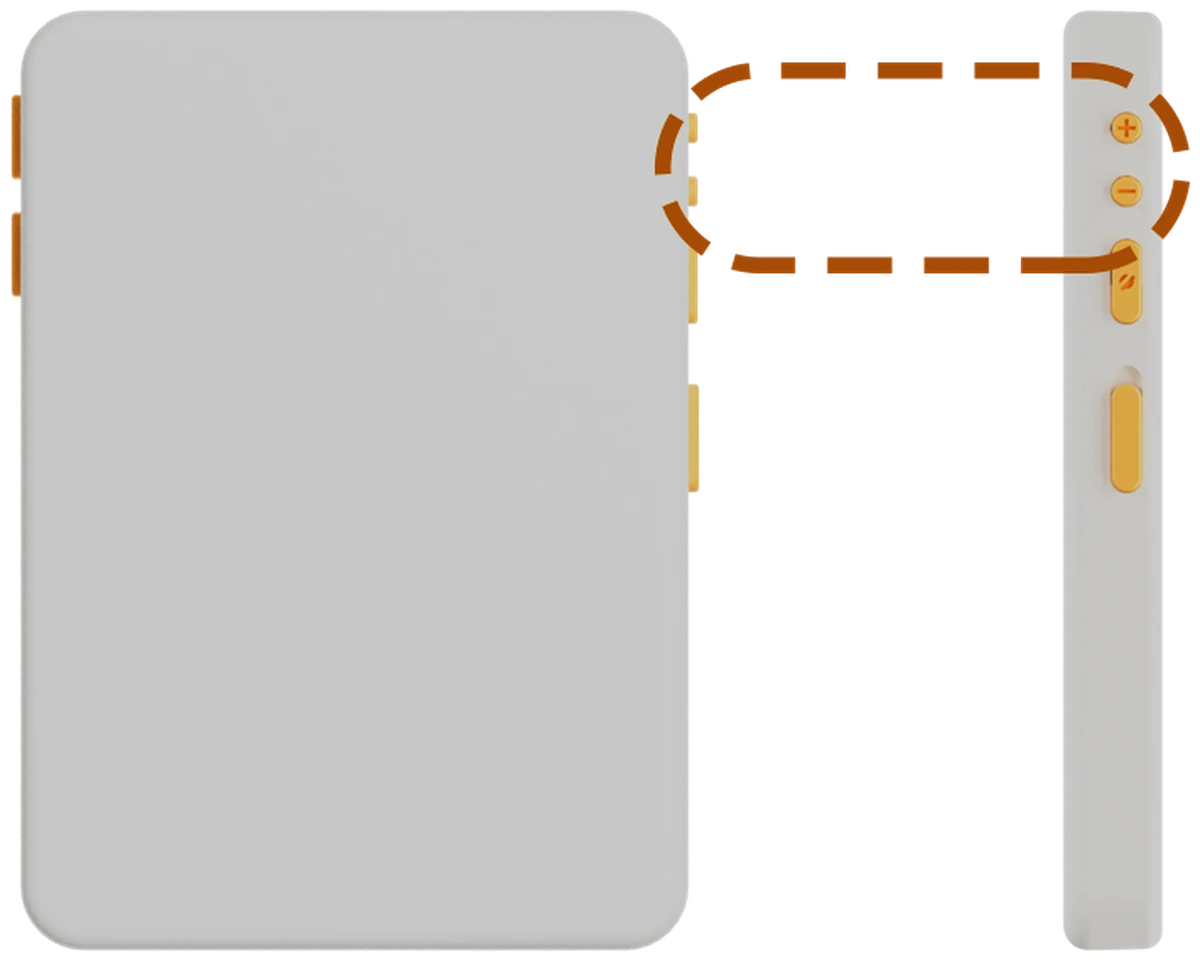
Open Bluetooth on the second device (an iPad, another computer or a phone) and walk through the guide above. When pairing finishes, the pointer moves to that device.
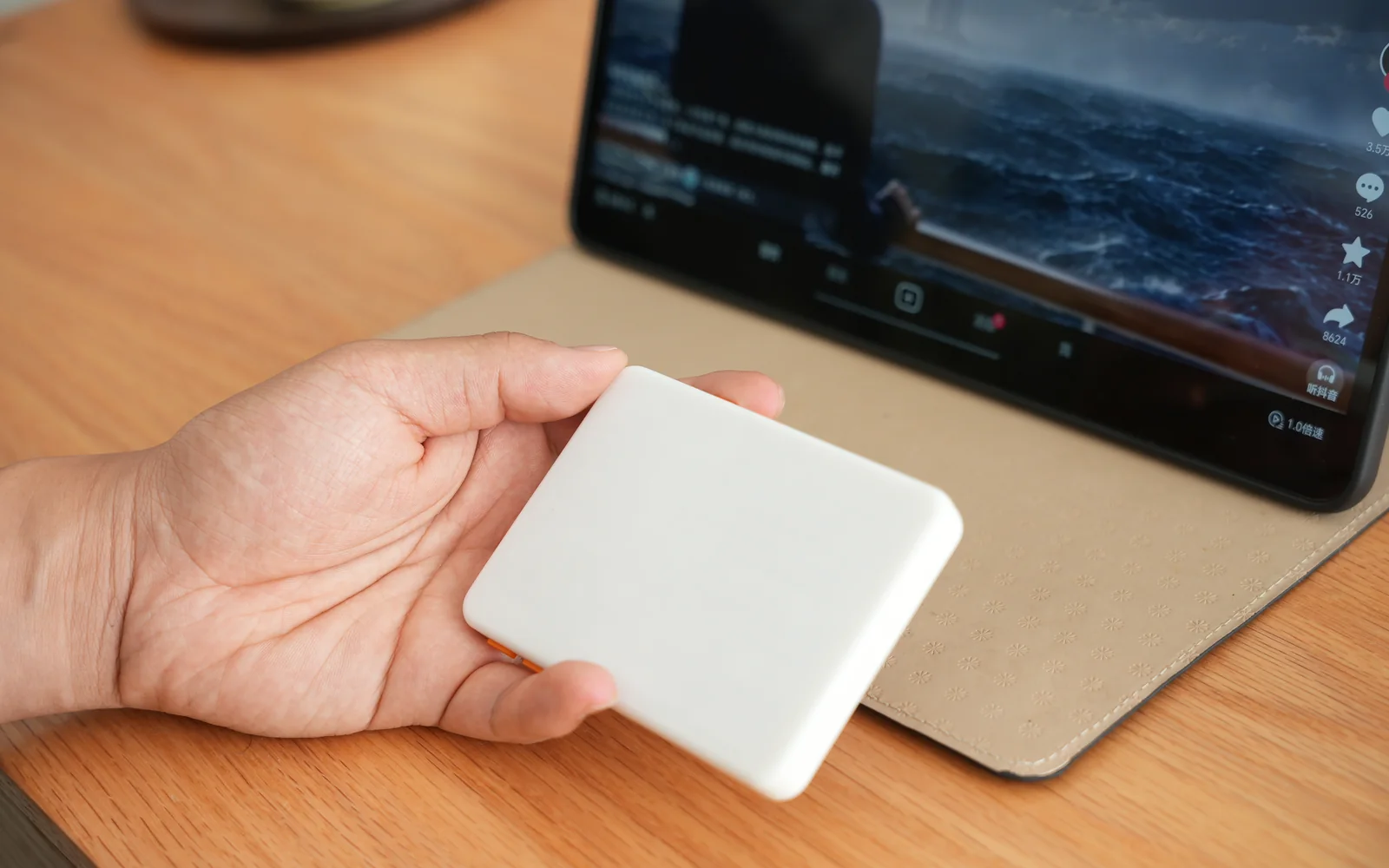
If the second device cannot find the pad, disconnect the first device, or press the combo again before searching.
Gallery
Start with the hardware, then see how it fits into your day. The four views and the desk scene are real photos; the rest is still being shot.
The buttons and side keys are product renders, the in-the-box image is an illustration; the in-bed and gaming scenes are still being shot.
Shortcuts
The buttons and gestures you'll use most. Start with Confirm and Cancel.
| Action | Button / gesture |
|---|---|
| Confirm / Enter | Confirm |
| Back / Backspace | Cancel |
| Lock Android device | Lock |
| Volume down / up | Volume−/Volume+ |
| Arrow keys | Two-finger swipeNon-Apple mode, app not connected |
| Switch device | Volume−+Volume+ |
| Wake AI voice input | Custom shortcute.g. Doubao / ChatGPT voice input |
Specs
At 104 × 74 × 11 mm, it disappears into your bag.
* Use the included USB-C cable and charge while the pad is powered off.
Download
Installers are hosted on Gitee. All versions and release notes live there.
Windows 10 / 11 · macOS · Linux
Android · HarmonyOS
iOS / iPadOS
On Linux there is nothing to install: pair SHADOW_TOUCH in the system Bluetooth settings and it works.
FAQ
Most answers are in the setup guide. If not, scan the QR code to reach us.
Make sure the pad is powered on and the indicator is lit. Remove any old SHADOW_TOUCH pairing in Bluetooth settings and search again. See the Windows / macOS / Linux or Android setup guide; on Apple devices, confirm blue Apple mode before pairing.
Turn AssistiveTouch off and back on, or toggle “Perform Touch Gestures” off and on.
On Apple devices, confirm blue Apple mode and that AssistiveTouch and “Perform Touch Gestures” are on. If dragging stops, turn AssistiveTouch off and on again. If you previously paired in Android mode, forget the device in Bluetooth, switch modes and pair again.
Enable “Show taps” in Developer options. On some phones the floating dot still does not appear even with this setting on — install the ShadowTouch app to get a working pointer.
Windows 10 / 11, macOS, Linux, Android, HarmonyOS, iOS and iPadOS. Phones, tablets and computers are supported. The Bluetooth name is SHADOW_TOUCH and the range is about 10 metres.
1000 mAh battery, up to 5 hours of use and about 1.5 hours to charge. Use the included USB-C cable and charge while the pad is powered off.
Pair each device once. To switch, hold Volume− + Volume+ to enter switching mode, then follow the guide above to pair the second device; the pointer moves there when pairing finishes. See the switching guide.
Sometimes the dot lags slightly behind your hand. Power-cycle the pad, or restart the phone or computer — that usually clears it up.